


Incorporating a Squarespace store locator is one of the quickest and easiest ways to gain more visibility. You can help customers find your physical stores, increase in-store visits, and enhance your website’s user experience.
If you have multiple outlets, whether they are retail stores, restaurant chains, clinics, boutiques, dealerships, salons, or service centres, embedding a store locator widget on your Squarespace website gives your potential customers all the information they need in one place.
Today, one of the best ways to help customers find your stores or branches is by installing LocateStore on your website. This is a modern and flexible tool that runs on Mapbox and is built completely on Google Sheets. This makes it super simple, fast, and easy to install and manage. With just a few clicks, you can update your store locations (and other information) in a spreadsheet. Every addition, deletion, or modification you make is instantly reflected on your website.
Here we will discuss how to add a store locator, the best store locator solutions for Squarespace, performance considerations, essential features, and how LocateStore makes matters simpler for US-based businesses.
Why Your Squarespace Website Needs a Store Locator
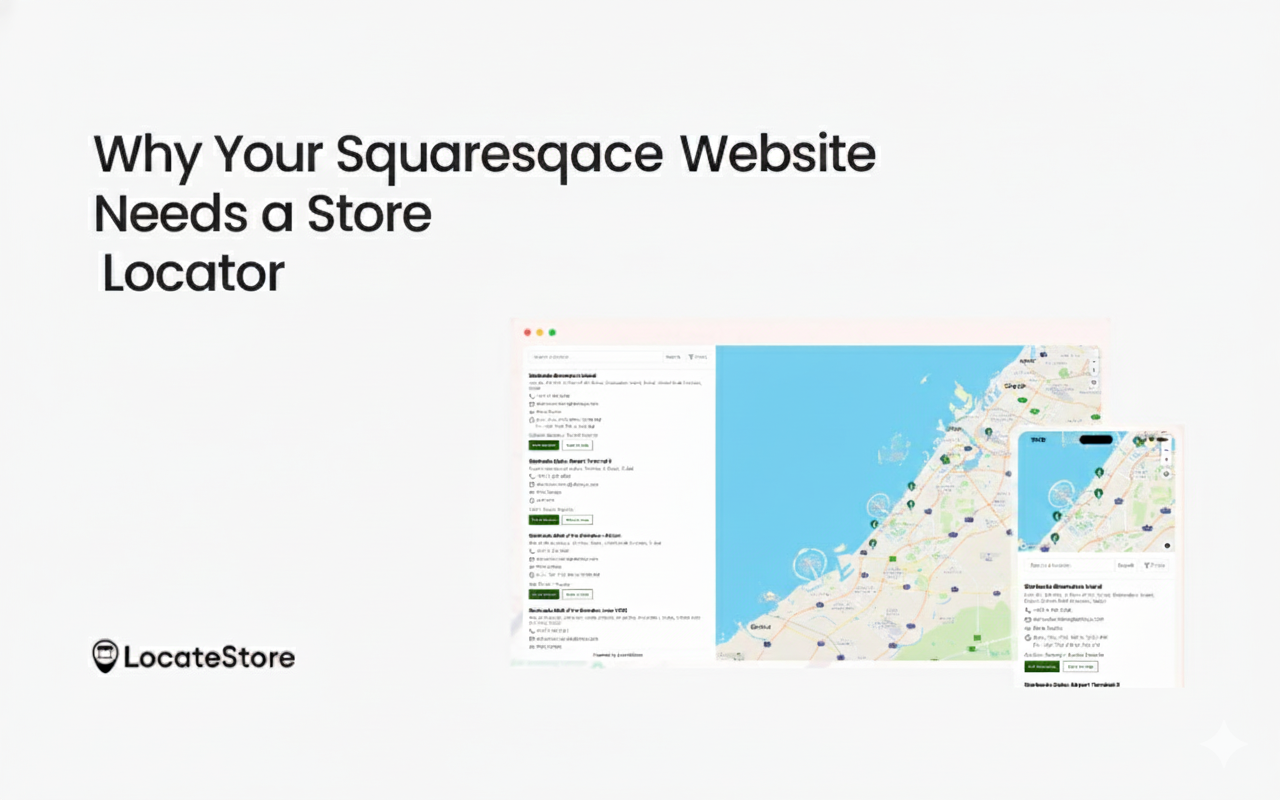
In the US, local search has emerged as one of the strongest drivers of foot traffic. According to data released by Google, 76% of shoppers who search for a nearby business go to a physical store within 24 hours. This means that location visibility is crucial for any business that has several branches.
Squarespace is a popular website platform used by small and mid-sized businesses as it offers its clean designs. But it does not feature an in-built store locator. You have to get a third-party tool that you can embed easily. Ideally, it should also be fast loading and easy to update, without necessitating technical skills.
How does a good store locator help your customers?
- They can find your nearest store
- The business hours are displayed
- Driving directions to the store are displayed
- They can use filters to search for outlets or branches by service types
- They can instantly contact the store
This means increased foot traffic, enhanced customer experience, and higher conversions for your business.
A Brief Comparison of Different Store Locator Tools for Squarespace
Here is a quick comparison of different third-party tools you can use on Squarespace:
What Should a Good Store Locator for Squarespace Include?
There are some key Squarespace store locator features that every US business should absolutely have when they are considering a store locator on their Squarespace website:
- Responsive map that runs efficiently on mobile devices, as mobile dominates local search
- Ability to search by postcode, city, state, and radius
- Offers both list view and map view
- Advanced store filters like categories, services, and product types
- A button for getting directions
- Data syncing in real time
- Minimal loading time on mobile
- Simplified location management
LocateStore is the store locator tool that checks all these boxes; its backend, based on Google Sheets, makes it even more versatile and powerful.
How to Add a Store Locator in Squarespace (Using LocateStore): A Step-by-Step Guide
You will be pleasantly surprised to know that adding a store locator to Squarespace is simple and quick; in fact, it takes less than 10 minutes.
Step 1: Account Creation
First, you need to create a LocateStore Account. For this, you just need to navigate to the dashboard. Follow the simple directions to create your account.
Step 2: Adding Your Store Locations
LocateStore provides a Google Sheets template that lets you enter all your store information.
You simply have to fill in the following details:
- The name of your store
- Complete address
- City, state, and postcode
- Contact number
- Email address
- Hours of business
- Services offered
- Map coordinates (usually generated automatically when you enter the full address)
- Add your own custom store pin for each location to match your branding
- Create new columns in the sheet and use them as filters in your store locator for a more personalized experience
As soon as you add a new row, it appears as a new store on the map. Thanks to the Google Sheets integration, updates are automatically reflected on the website.
Why is this helpful
In 2024, a report by Software Advice revealed that 68% of businesses choose spreadsheets to manage their data because they’re simple, known, and don’t require any coding or other technical skills.
Step 3: Customizing Your Store Locator Widget
One of the best features of LocateStore is the ability to fully customize the look of your map. To do this, simply go to your LocateStore dashboard.
From there, you can:
- Set the default zoom level
- Enable the filters you want to include
- Enable list + map view
- Choose map colours to match your brand
The store pin design comes directly from the Google Sheet, so it is not updated from the dashboard.
Step 4: Generating Your Embed Code
LocateStore offers a clean HTML embed code that is easily compatible with any Squarespace page. There isn’t much you need to do.
Step 5: Add the Embed Code to Squarespace
Now you’re all set to install your store locator. Simply open your Squarespace page editor and click on the + icon. From the list, choose Code Block, and paste the LocateStore embed code. Next, click on save, and then publish, and you are done. Your Squarespace store locator is now live without any coding whatsoever.
Why US Businesses Prefer Store Locators Powered by Mapbox
Maps are a key deciding factor when it comes to store locator performance. Reliance on Google Maps can lead to slow load times, especially on mobile devices. Many older tools still use Google Maps.
On the other hand, LocateStore uses Mapbox, which is a modern, lightweight, and cost-effective alternative to Google Maps.
Key Benefits offered by Mapbox:
- Up to 50–60% faster load time when compared to Google Maps
- Elegant maps that can be customized for US shoppers
- Highly precise geocoding
- Delivers app-like performance
- Offers smooth panning and zooming
These factors ensure that your locator loads instantly, even if you have more than 500 store locations.
Why Google Sheets Integration Matters
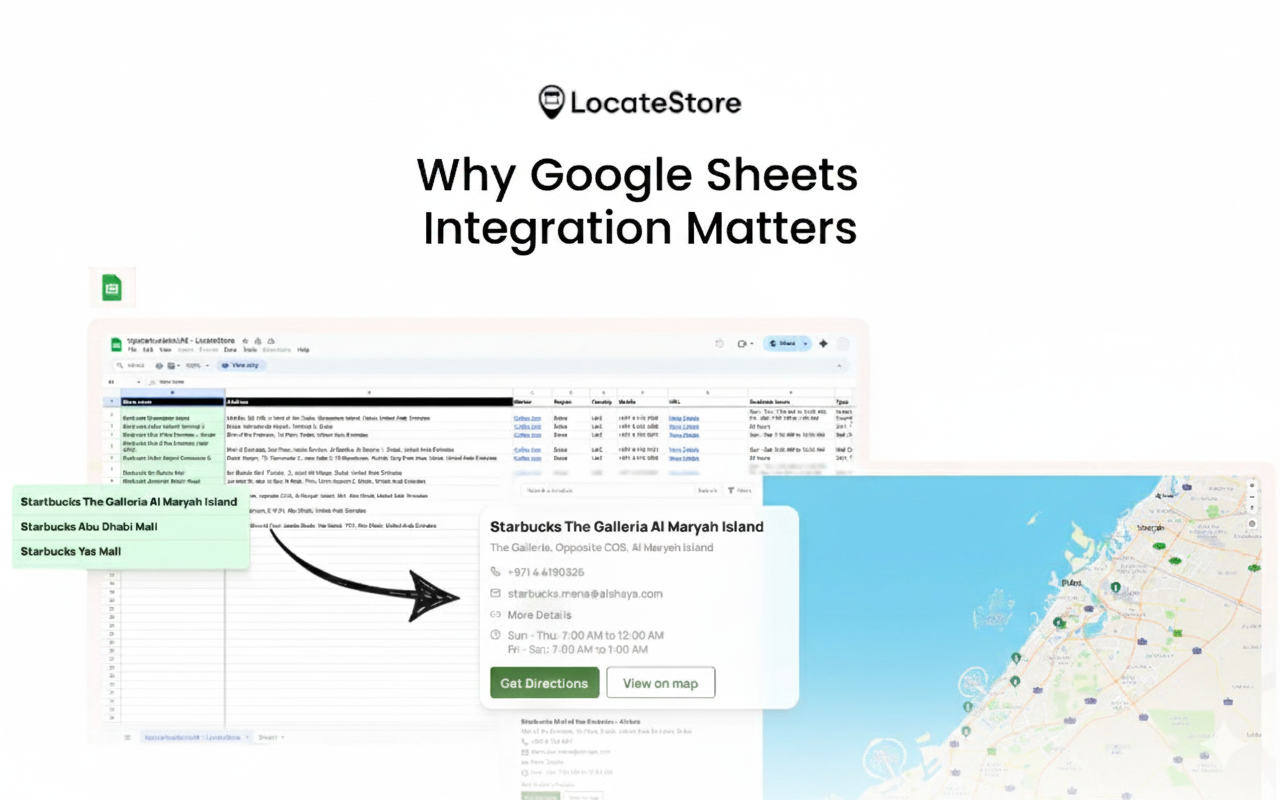
The Google Sheet integration and backend are the biggest advantages that LocateStore has. For a multi-location business, it offers the following benefits:
- Ability to update store data at any time
- All changes are reflected instantly on your Squarespace website
- Any and even multiple team members can edit the sheet simultaneously
- Simple dashboard, eliminates the need to log in
- Ideal for remote teams and small businesses on the growth path
- Easily do bulk editing
- Support for CSV import and export
This undoubtedly makes LocateStore the ideal store locator solution for Squarespace, especially for US brands that are growing rapidly.
Also read: How Store locators work in Squarespace
Conclusion
Installing a store locator on your Squarespace website is one of the smartest ways to deliver a great customer experience and increase physical visits to stores. As local searches (many including ‘near me’ phrases) drive almost 80% of real-world purchases, it is imperative that you have a clear Store Finder page. This becomes absolutely essential for any business with multiple physical locations.
LocateStore ensures that this process becomes exceptionally simple. Powered by Mapbox, its maps load quickly; with a backend comprised of Google Sheets almost anyone, like marketers, store managers, or franchise teams are able to instantly update store data without logging into a confusing dashboard or having any coding skills.
Ergo, if you want a simple, scalable, customizable, and reliable Squarespace store locator for your business, LocateStore is one of the best tools you can get today.
FAQs
How do I add a store locator in Squarespace?
You can simply embed the LocateStore widget via a Code Block to add a store locator on your Squarespace website. You can add your store information to the Google Sheets template, customize your locator, copy the embed code that is generated, add a code block, paste it in Squarespace, and publish. The locator instantly goes live without plugins or coding.
Which store locator tools work best with Squarespace?
We recommend LocateStore as the ideal tool for most US businesses, as It’s entirely built on Google Sheets, uses Mapbox for fast loading and simple navigation. It also allows you to add unlimited stores and is very user-friendly.
How do I upload and manage store location data on Squarespace?
You cannot directly upload your store data on Squarespace. However, you can embed a store locator widget like LocateStore to ensure your customers can see all your locations. You can easily upload store data via Google Sheets, instantly add, edit or delete locations, manage any number of stores, allow anyone in the team to make updates, and sync changes instantly with your site.
Will a store locator affect the speed of my Squarespace website?
If you use a lightweight tool like LocateStore, it will not slow down your Squarespace website. Store locators using heavy scripts can slow down websites, but LocateStore uses Mapbox, which loads faster, is responsive, loads data only when required, and does not slow down page loading.