
Transferring a locator lets you move an existing store locator, along with all its configuration and data, to another LocateStore user's account. This is useful when handing off a project to a client, or moving a locator between team accounts.
Store locators are transferred individually.
Before you begin
Your locator must be on the Free plan. Locators on a paid plan cannot be transferred, so downgrade it first.
The recipient must already have a LocateStore account. They can sign up at locatestore.com if they do not have one yet.
You will need the recipient's account email address.
Go to Account & Billing
Log in to your LocateStore dashboard and click on your profile picture at the top right corner. Select Account & Billing from the dropdown menu.
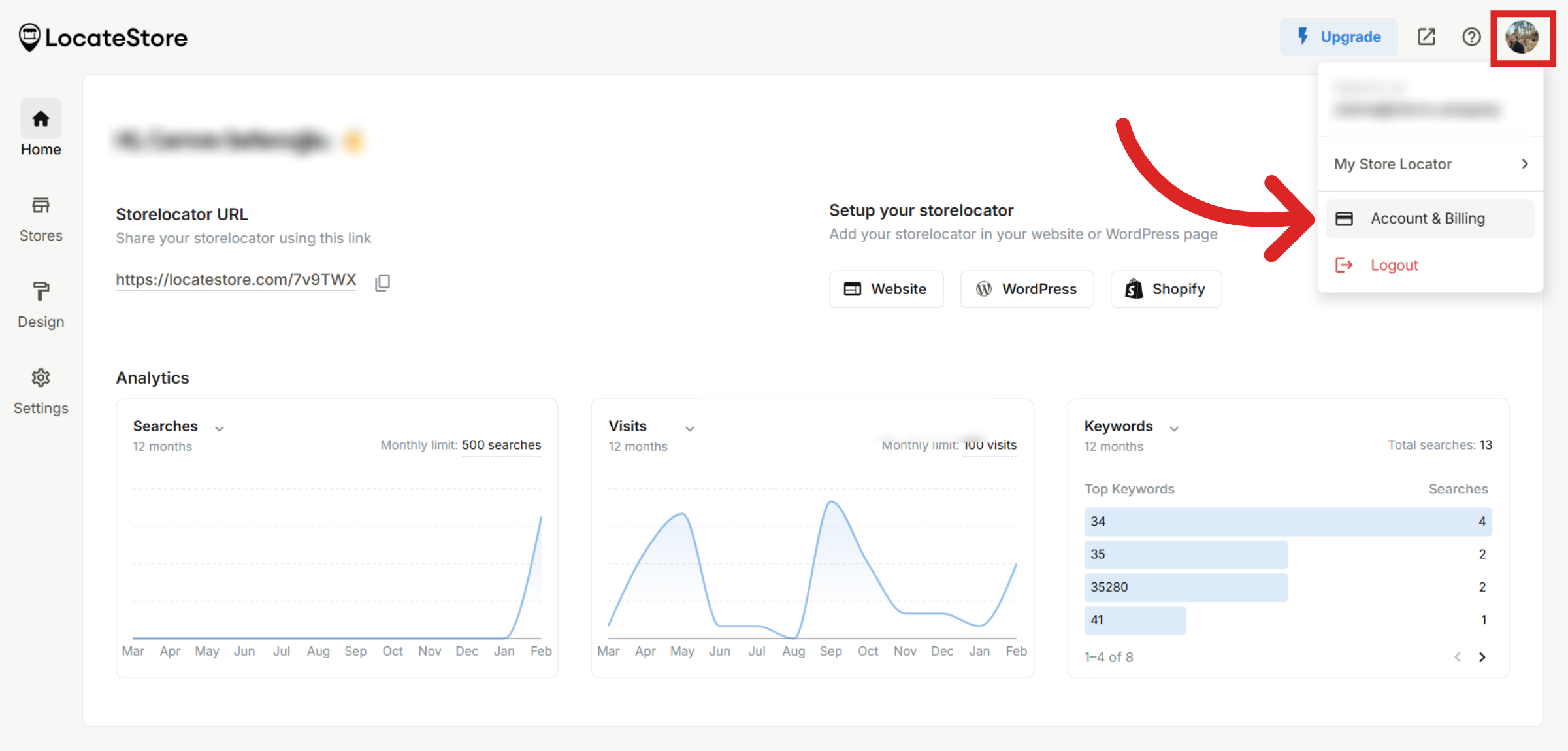
Transfer the locator
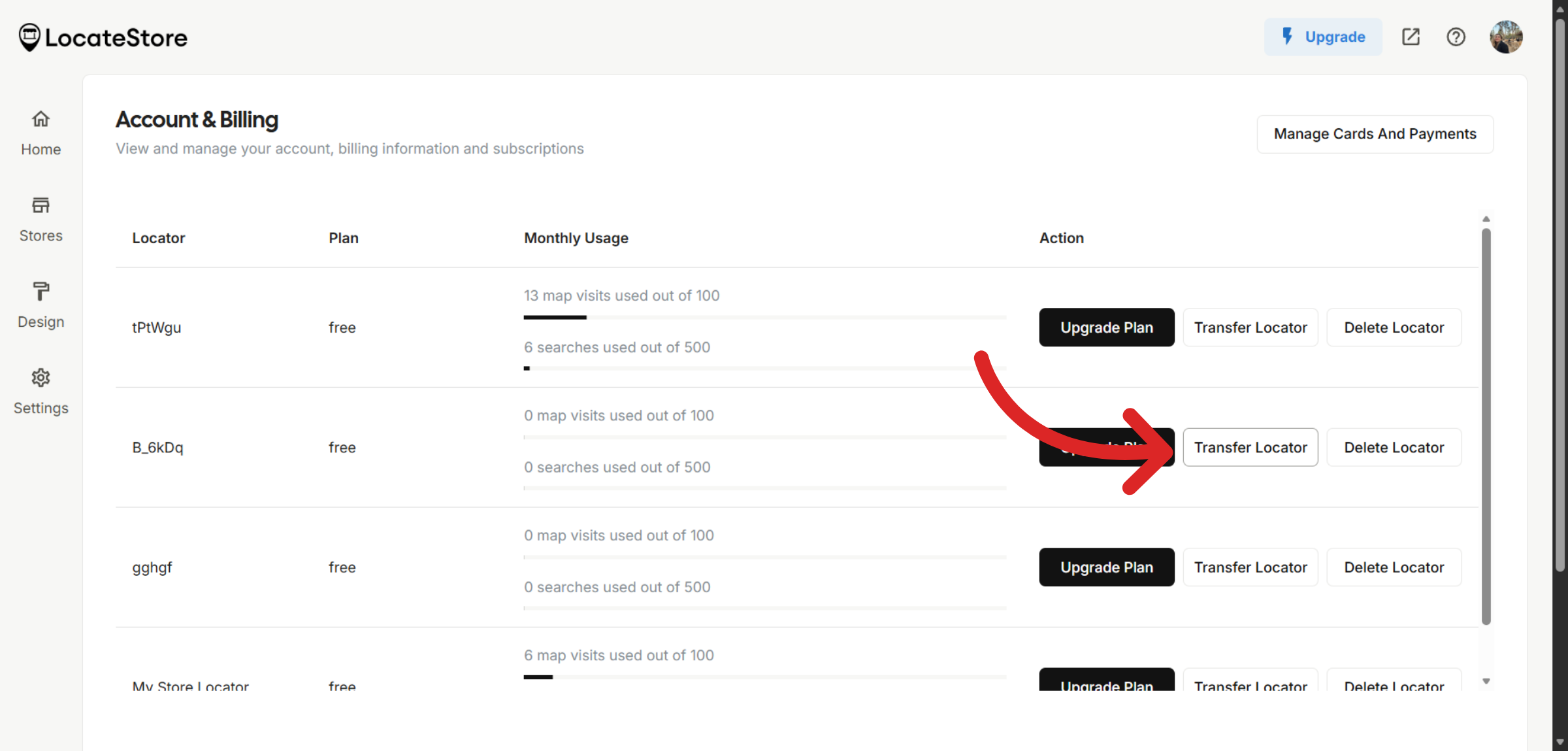
On the Account page, you will see a list of your store locators. Find the one you want to transfer and click Transfer Locator next to it.
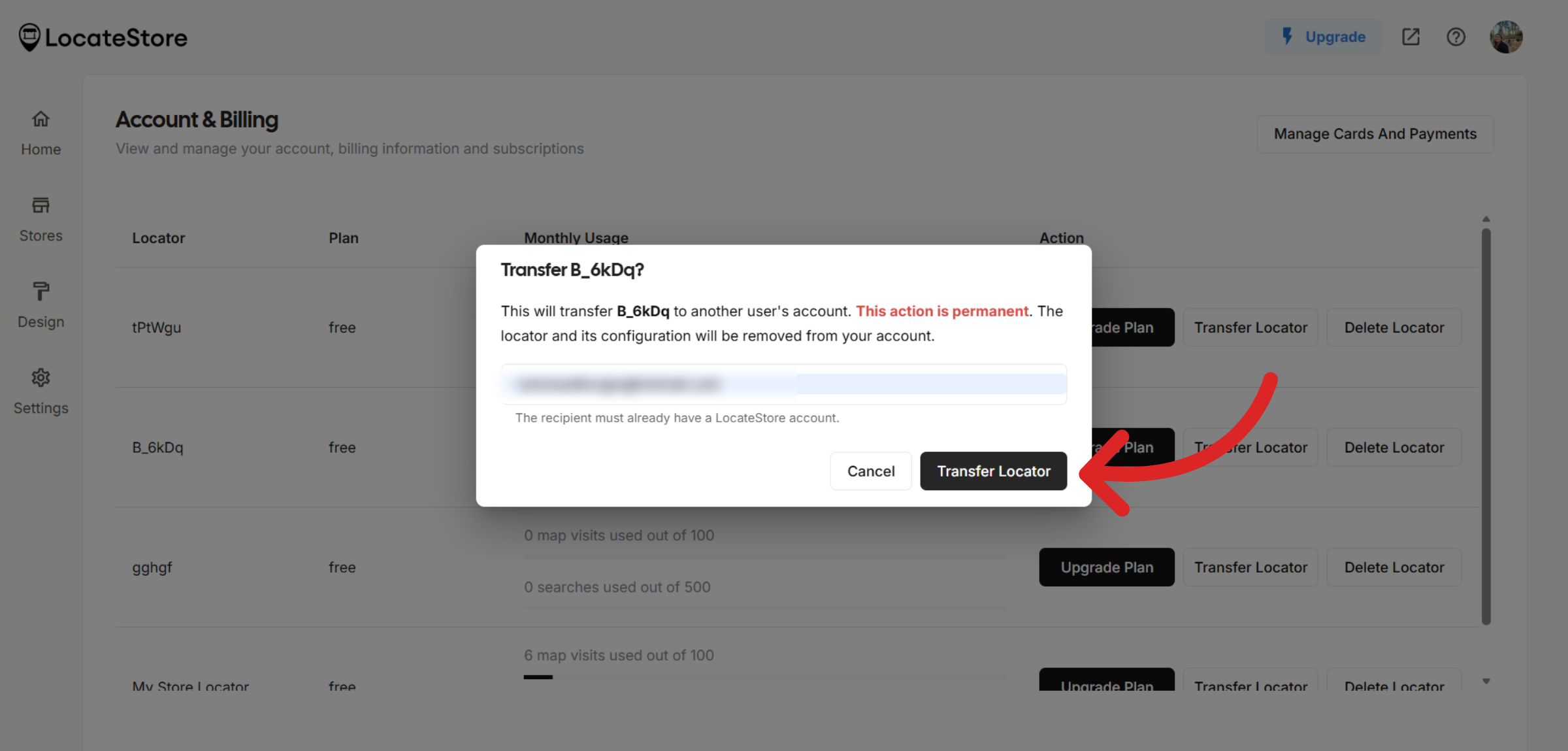
A confirmation dialog appears. Read the warning carefully, because this action is permanent. Enter the recipient's email address and click Transfer Locator to confirm. You will see a success message once the transfer is complete.
What happens after the transfer
The locator is removed from your account and added to the recipient's account.
All locator configuration is preserved, including map settings, design, translations, and connected Google Sheet data.
The locator's subscription is reset to the Free plan.
If the transferred locator was your active locator, your most recent remaining locator becomes the new active one.
Note
This action is permanent. Once transferred, the locator cannot be automatically returned. The recipient would need to transfer it back to you.
Paid locators cannot be transferred. Downgrade to the Free plan before transferring.
You cannot transfer a locator to yourself. The recipient email must belong to a different account.
Troubleshooting
"Only locators on the Free plan can be moved" — your locator is on a paid plan. Go to Account & Billing and downgrade it to Free plan before transferring.
"No account found with this email. The recipient must create an account first." — the email you entered does not match any existing LocateStore account. Ask the recipient to sign up first.
"Cannot move locator to yourself" — you entered your own email address. Enter the recipient's email address instead.
Still need help?
Contact us