


Store locator software used to mean custom code, developer hours, and an expensive map API bill. Not anymore. With LocateStore, you build a complete store locator from a single Google Sheet, no coding, no API keys, and no manual updates. Add a store, edit an address, or change your hours in the Sheet, and the map on your website updates automatically.
In this guide, you will learn what an automated store locator is, how to build one with Google Sheets, and how automation beats manual map maintenance. We will keep every step simple, so you can launch yours today.
What Is an Automated Store Locator?
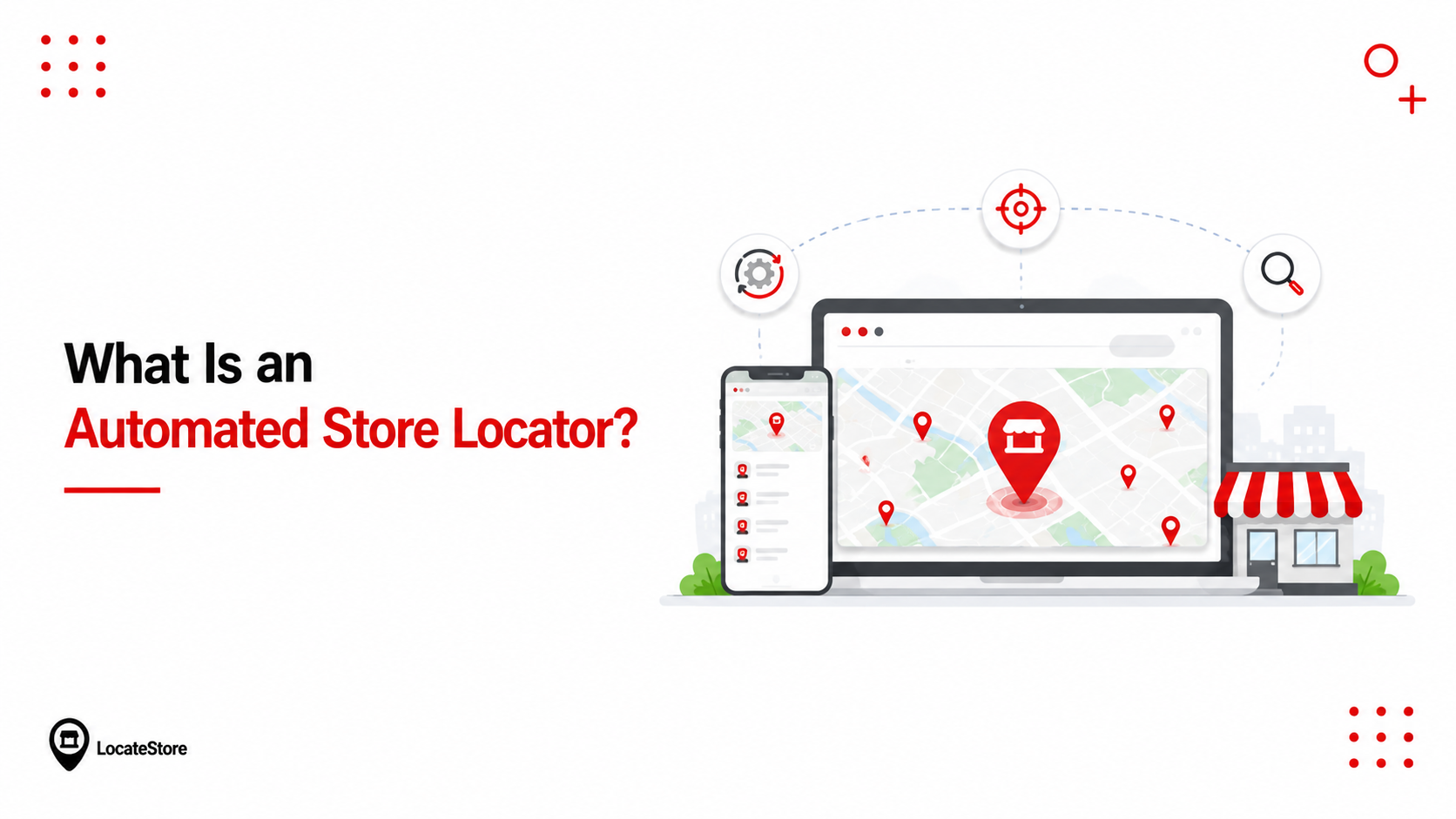
An automated store locator is a map on your website that finds your physical locations for visitors and updates itself without extra work from you. A customer types a city, state, or ZIP code. The map shows your nearest stores, their addresses, hours, and directions.
The "automated" part is what matters. In a manual locator, every new store or changed address means editing the website itself. In an automated locator, the map reads from a data source and refreshes on its own. With LocateStore, that data source is Google Sheets.
Think of it as a live directory. Your team edits a spreadsheet. The map follows. Nothing needs to be re-embedded, re-coded, or re-published.
For businesses in the United States- retailers, dealerships, restaurant chains, or service providers- this means every location stays accurate with far less effort.
When someone searches for a store near them, they usually want to visit soon. A locator with the wrong address, old hours, or a missing new store sends them to the wrong place, or nowhere at all. That single friction point quietly costs foot traffic. An automated locator closes the gap because the data customers see is the same data your team already maintains in a spreadsheet.
Manual vs. Automated Store Locators
The difference shows up most clearly at scale. With two stores, editing a page by hand is annoying but manageable. With twenty stores across three states, manual updates become a standing chore, and the map is usually behind reality. Automation makes the twenty-store case as easy as the two-store case, because adding a location is always just one more row.
How to Create a Store Locator with Google Sheets
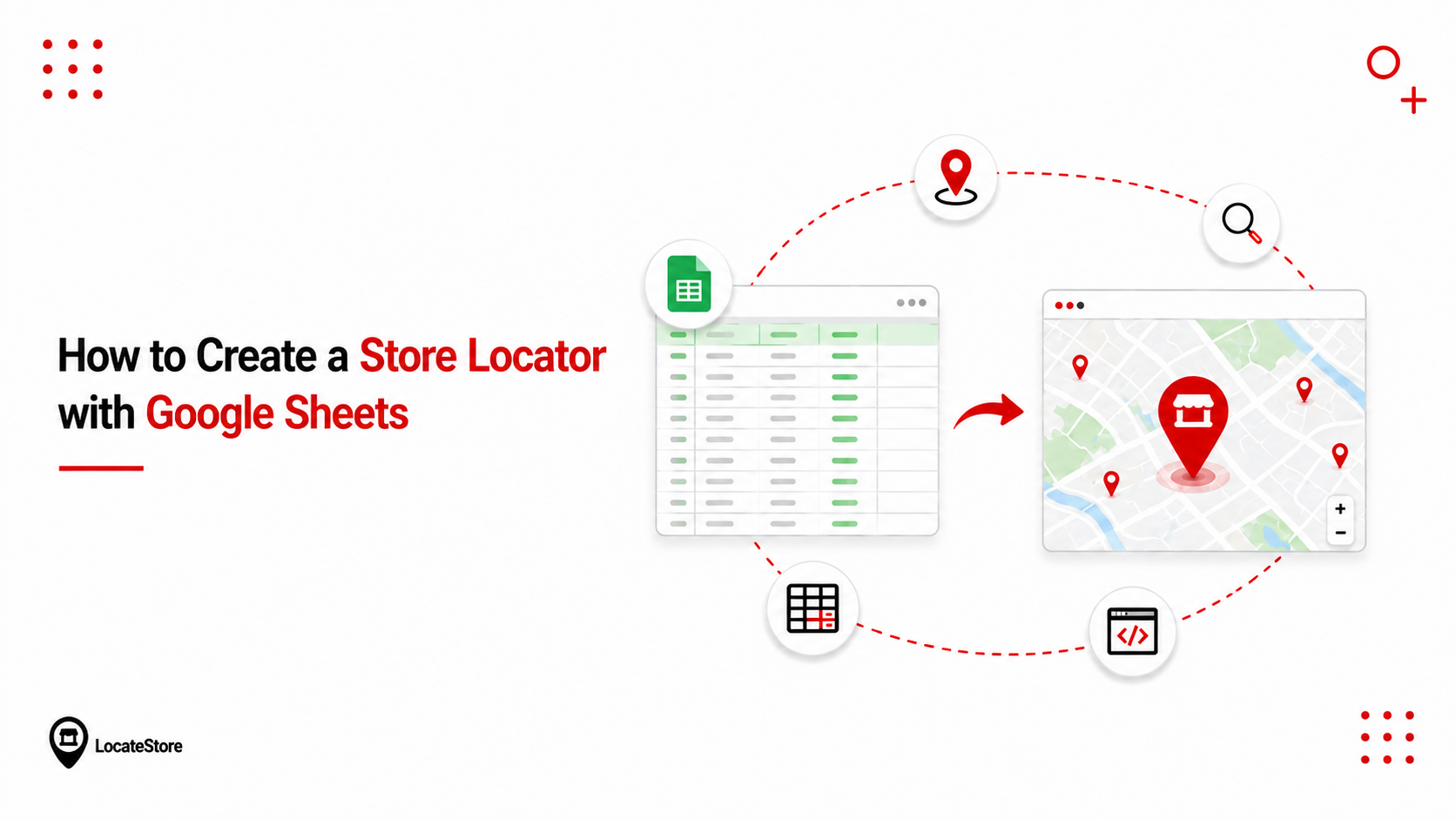
Here is the full process with LocateStore. You do not need a developer.
Step 1: Install the LocateStore add-on
Open a blank Google Sheet and install the LocateStore add-on from the Google Workspace Marketplace. The add-on lets you manage the entire locator from inside the Sheet without switching to a separate dashboard. If you would rather start from the web app, you can create your account first and connect a Sheet from there. Either path leads to the same locator.
Step 2: Add your location data
Fill in one row per store. Store Name, Street Address, City, State or region, postal code, Phone, Hours, and Category are typical columns, but you can add any column your business needs. If your locations already live in a spreadsheet or a CSV export, paste them in as a bulk import rather than typing them again.
Step 3: Match your columns
Click Get Started and map each column in your Sheet to the matching field in LocateStore. This is the step that tells the locator which column holds the address, which holds the phone number, and which should power your filters. You only do it once.
Step 4: Customize the map
Match the locator to your branding. Adjust colors, fonts, and border radius, choose a map style, set your custom pin icon, and decide which fields appear on each location card. Enable search and category filters so visitors can narrow results by store type, service, or any other column you have defined.
Step 5: Embed it on your website
WordPress and Shopify have native integrations, so you can install LocateStore directly as a plugin or an app rather than pasting code. For Webflow, Wix, Squarespace, Notion, and most other builders, you copy a single embed snippet onto the page. You can also share the locator as a standalone link, or add it as a floating widget that opens in a popup.
Step 6: Test it
Open the live map and check a handful of locations. Confirm the pins land in the right place, the names and hours read correctly, and search returns sensible results for a city and a postal code. Then add one test row in the Sheet and watch it appear. That confirms the connection is live before customers use it.
From that point on, changing the Sheet is the only step.
How to Format Your Location Data
Clean data is the single biggest factor in whether your pins land correctly. LocateStore converts each address into map coordinates through Mapbox, and the geocoder needs a complete, consistently formatted address to do that reliably.
Every location needs one of two things to appear on the map: an address complete enough for Mapbox to resolve, or a set of coordinates. The address route is the default and covers almost every location. The Coordinates column is the fallback. If Mapbox cannot recognize an address, enter the latitude and longitude directly, and the pin will place exactly where you put it.
Two habits prevent most mapping problems. Use full street addresses rather than shorthand, and keep one consistent format per column, so every state is a two-letter code or every state is spelled out, not a mix.
How Google Sheets Automation Solves Location Management Issues
Using Google Sheets as the backend removes the most common headaches of running a store locator.
- No new tools to learn: Your team already knows how to use a spreadsheet. There is no separate dashboard to master, so anyone can add or fix a location.
- Bulk edits in seconds: Opening a new store, closing an old one, or updating hours across a region is a copy-paste job in the Sheet, not a series of website edits.
- One source of truth: When the Sheet is the single record, you never end up with a map that disagrees with your internal location list. Fix the cell, and the website is correct.
- No map API costs: Because LocateStore runs on Mapbox rather than Google Maps, you are not billed per map load or left managing Google Maps API keys. Each location still links out to Google Maps for turn-by-turn directions.
Google Sheets is also built for collaboration. Multiple team members can edit the same Sheet at once, and changes sync to the live map. This is why a Google Sheets-based workflow has become the fastest way to keep a location finder current.
Accuracy also feeds your local SEO and store pages. When every location's address and hours are correct and consistent, search engines and customers alike get trustworthy information. A single source of truth makes that consistency automatic rather than something you police by hand.
Why LocateStore Is the Simplest Store Locator Software
LocateStore is built entirely around this Google Sheets idea. The result is a store locator that stays accurate with almost no upkeep.
- 100% powered by Google Sheets. One row is one location. That is the whole model.
- Mapbox maps, not Google Maps. You get a fast, beautiful, mobile-friendly map with no external API keys.
- Unlimited locations on every plan. Even the Free plan has no limit on how many stores you add.
- Search and filters. Visitors search by name or location and filter by category to find the right store quickly.
- Fully mobile-friendly. The map is responsive on every device, which matters because most "near me" searches happen on a phone.
- Trusted at scale. LocateStore is used by 5,000+ businesses and has powered 700,000+ map searches, 450,000+ locations plotted, and 1,000,000+ map views.
- Customizable design. Adjust colors, fonts, map style, pin icons, visible fields, and filters to match your site.
You can try the live demo to see a working map before you build your own.
Conclusion
Building an automated store locator no longer means hiring a developer or paying a map API bill. The whole system can run on a Google Sheet: every row is a location, every edit is a live update, and the map on your website follows automatically. That single change removes the biggest hidden cost of a store locator: stale, out-of-date information that sends a customer to the wrong place. With Google Sheets as your source of truth and LocateStore handling the map, search, filters, and mobile layout, accuracy stops being a chore and becomes automatic. When you are ready to launch, create your free account, paste in your locations, and embed the map; the whole setup takes minutes, not days.
Create your store locator for free, no credit card and no coding required.
Frequently Asked Questions
When should you use automated testing?
Use automated testing whenever the data behind your locator changes in a meaningful way, after a bulk upload, after you rename or reorder columns, or right before a high-traffic event like a holiday or a store launch. The point is to confirm the map still renders correctly after an edit. With LocateStore, the Sheet is the test bed: add a few test rows, open the map, and check that names, addresses, and pins display as expected. Because updates are instant, you catch problems in seconds instead of after customers do.
Can Google Sheets automatically update my store locator?
Yes. This is the core of the LocateStore design. When you add, edit, or delete a row in your connected Google Sheet, the change appears on your website's map automatically. There is no re-embedding, no re-publishing, and no manual refresh step. You edit the spreadsheet, and the locator follows.
What are the limitations of a Google Sheets store locator?
The main limits are data quality and connectivity. The map is only as accurate as what you type into the Sheet, so malformed addresses or missing ZIP codes will show up as errors. The locator also needs an internet connection, and styling is done through the locator tool itself rather than inside raw Sheets. For most businesses, these are minor, because the spreadsheet model removes the much bigger risk: a stale, out-of-date map.
How many store locations can I manage with Google Sheets?
With LocateStore, all plans, including the Free plan, support unlimited store locations. There is no per-location limit. What changes between plans is monthly traffic: the Free plan includes 100 visits and 500 searches per month, while Lite and Standard raise those limits. In other words, the number of stores is never the constraint; your website traffic is what determines the plan you need.