

If you want to increase foot traffic this holiday season, your website is the best place to start. Holiday shoppers look up your hours, check which location is closest and decide whether the trip is worth it, often before they ever leave home.
Getting people through the door used to mean flyers, radio spots and hoping the right customers walked past. Not anymore. In this guide, you will learn how to turn your website into a holiday foot traffic engine: from publishing accurate holiday hours to adding a store locator and "find a store" calls to action, so you can put it all in place before the rush.
What Is Foot Traffic (and Why Does Your Website Drive It)?
Foot traffic is the number of people who walk into your physical store. For retailers, franchises, dealerships and coffee shops, it's one of the clearest signs that your marketing is working.
During the holidays, the path to your door usually starts online. A shopper searches for a gift, finds your brand, and then wants to know three things: where your nearest location is, whether it's open, and whether it has what they need. If your website answers those questions quickly, they visit. If it doesn't, they go to a competitor whose website does.
That's why the steps below focus on removing doubt. Every shopper who's sure you're open, close by and stocked is a shopper who's more likely to show up.
Also read: Store Locator Software and Local SEO: How They Work Together to Grow Your Business
How to Increase Foot Traffic During the Holidays: 8 Steps
Use these steps as a checklist. Most of them take minutes, not days.
Step 1: Publish your holiday hours everywhere
Nothing loses a holiday visit faster than a shopper arriving at a locked door. Update your hours for every location and every special day: Black Friday, Christmas Eve, New Year's Eve and any day you close early.
Put them where shoppers look: your store locator, your contact page, a banner on your homepage and your local listings. Use one clear format, like "9 am to 7 pm," so nobody has to guess.
For example, if your store normally closes at 8 pm but closes at 5 pm on Christmas Eve, show the special hours clearly instead of relying on your regular schedule.
Step 2: Add a store locator people can find in one click
A store locator is an interactive map on your website that lists all your locations. Shoppers can search by city or ZIP code, or use their current location to see the nearest store and get directions.
If you only have an address in your footer, shoppers have to copy it into a map app themselves. A store locator does that work for them. Link to it from your main menu with a label shoppers recognize, like "Find a Store" or "Locations."
Give the locator its own page, too, such as yourbrand.com/stores. A dedicated page is easy to link to from ads, emails and social posts, and it gives search engines one clear place to find all your locations at once.
Step 3: Show what each location offers
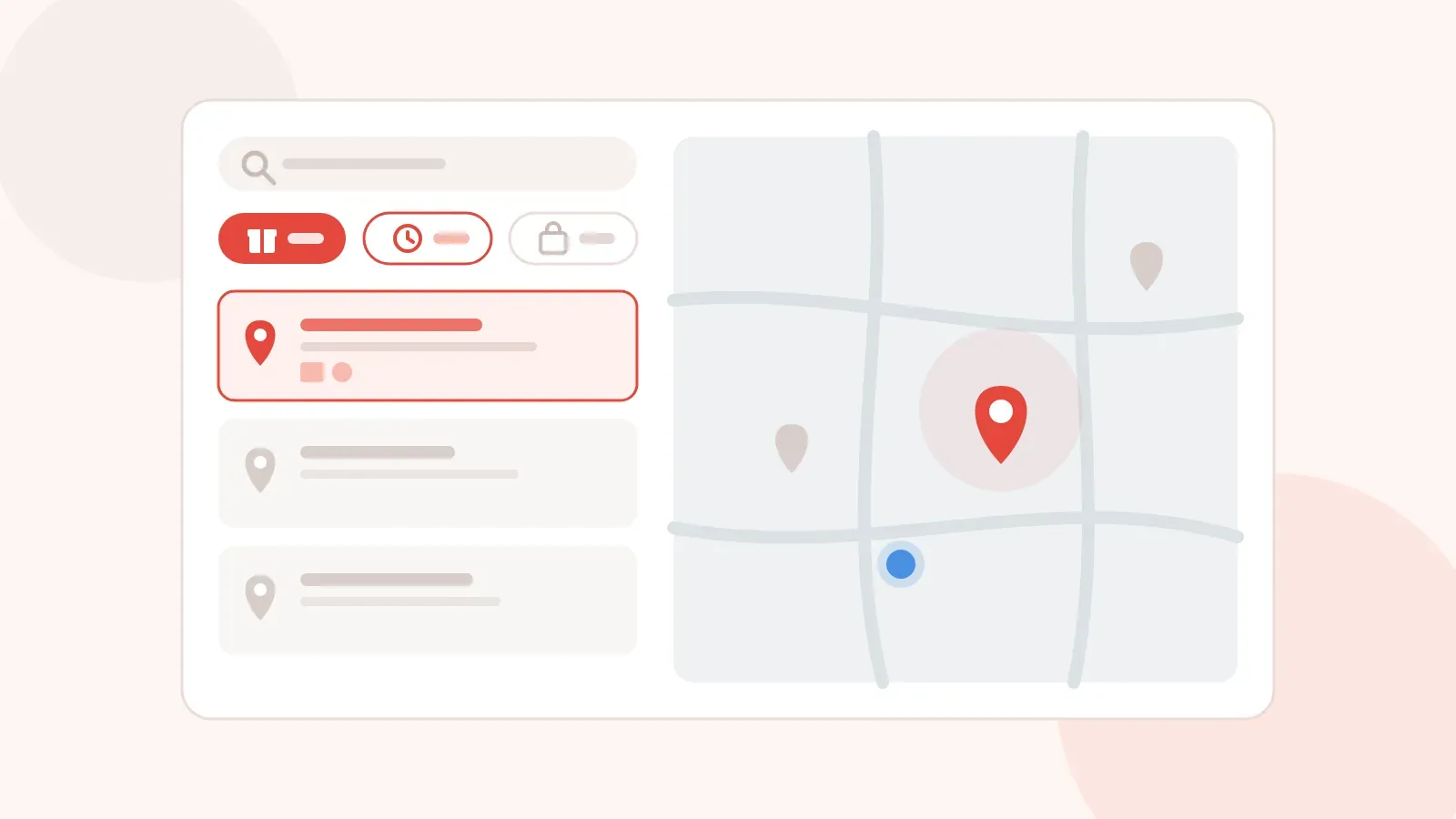
Holiday shoppers care about more than the address. They want to know which store offers gift wrapping, in-store pickup, extended hours or a specific service.
Add these details to each location and let shoppers filter by them. A parent looking for a store with gift wrapping on a Sunday evening should be able to find it in seconds.
Step 4: Tell shoppers what's in stock nearby
"Is it in stock?" is one of the biggest questions holding back a store visit. If you can show live stock levels, do it. If you can't, you can still help:
- If a product is sold at your physical stores, add a "Find a Store" link to its product page. If you don't track inventory by location, encourage shoppers to call the nearest store to confirm availability before visiting.
- Mark which locations carry a holiday collection or a popular product line.
- Make sure every location shows a phone number, so calling ahead is easy.
Even a simple "Ask about this at your nearest store" link turns a product page into a reason to visit. The goal is to answer the question before the shopper has to ask it.
Step 5: Give shoppers a reason to come in person
Online shopping is convenient, so give people something they can only get in store. Ideas that work well during the holidays:
- In-store pickup for online orders
- Free gift wrapping at the counter
- Holiday events, tastings, workshops or meet-and-greets
- In-store-only offers or gifts with purchase
Promote these on your homepage and link each one to your store locator, so the reason to visit and the way to get there sit side by side.
Step 6: Put "find a store" calls to action where shoppers already look
Don't make shoppers hunt for your locations. Add a "Find a Store Near You" button to:
- Your homepage banner during the holiday season
- Product and collection pages
- Holiday email campaigns
- Your social media bio and posts
A shareable locator link makes this easy, because you can use the same link everywhere.
Also read: What Is Local Marketing and How Does It Connect to Store Locators?
Step 7: Keep your local listings in sync
Many shoppers will see your Google Business Profile, Apple Maps listing or Bing Places listing before they see your website. Make sure your name, address, phone number and holiday hours match on every listing and on your store locator. Mixed information makes shoppers unsure, and unsure shoppers stay home.
Step 8: Check it on a phone and track the results
Many holiday shoppers look for a nearby store on their phone, often while they're already out. Open your website on your own phone and try to find your nearest store, check its hours and get directions. If it takes more than a few taps, simplify it.
Then measure what's working:
- Add UTM tags to your locator links in emails and social posts.
- Watch clicks on your "Find a Store" buttons and on directions links.
- Ask customers at the counter how they found you.
Keep in mind that these numbers show how many people look for your stores online, not how many walk in. To measure actual visits, pair them with store-level tracking, like asking customers at the counter or offering a redemption code you only share online. After the season, you'll have a clearer picture of which channels encouraged shoppers to find your stores, and which may have contributed to actual visits.
Your Holiday Website Checklist
| What to update | Where | Why it matters |
|---|---|---|
| Holiday hours | Store locator, homepage banner, local listings | Shoppers won't risk a trip if they aren't sure you're open |
| Store locator link | Main menu, homepage, product pages | Shoppers find the nearest store in one click |
| Services per location | Store locator filters | Shoppers pick the store that offers what they need |
| "Find a Store" links | Product pages for items sold in stores | Points shoppers to the nearest store, where they can call to check availability |
| In-store reasons to visit | Homepage, emails, social posts | Gives shoppers a reason to come in person |
| Tracking | UTM tags on locator links, plus in-store tracking | Shows which channels send shoppers looking for your stores |
Updating Holiday Hours: Manual vs Store Locator
If you manage more than a few locations, updating holiday hours by hand gets messy fast. Here's how it compares with a store locator powered by a spreadsheet.
| Task | Manual updates | Store locator from a Google Sheet |
|---|---|---|
| Change hours for one store | Edit a web page, then republish | Edit one cell in the Sheet |
| Change hours for every store | Edit each page one by one | Update one column in the Sheet |
| Keep the website accurate | Easy to miss a page | The map updates instantly from the Sheet |
| Who can do it | Often needs a web developer | Anyone who can use a spreadsheet |
Also read: How to Create an Automated Store Locator with Google Sheets
Why Locatestore Is Built for Busy Holiday Seasons
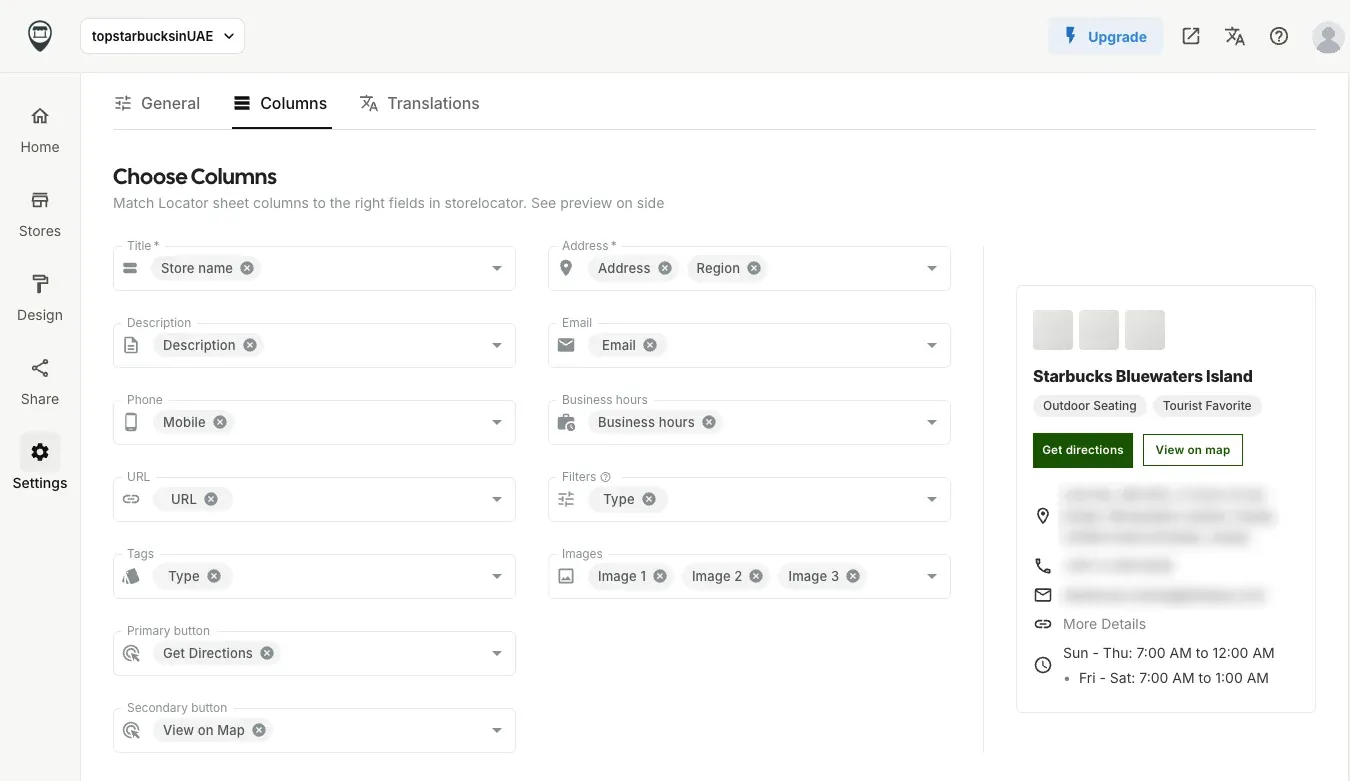
Locatestore turns a Google Sheet into a store locator for your website, so you can keep every location up to date without writing code.
- Edit a Sheet, update your map. Change hours or details in your Google Sheet, and your store locator updates instantly. You can also press Force sync in the dashboard to push changes right away. No web pages to edit.
- Search the way shoppers do. Shoppers can search by location or ZIP code, or use their current location to see how far each store is.
- Directions in one tap. Each location links to Google Maps, so shoppers can head straight to your door.
- Filters from your own columns. Turn columns like store type, brand or services into filters, so shoppers can find the store that has what they need.
- Show the details that matter. Display business hours and contact information for every location.
- Works where your website lives. Add it to Shopify, WordPress, Wix, Squarespace, Webflow or Elementor, or share it as a brandable link.
- Add it as a floating widget. Put a "Find a Store" button on any page of your website that opens your locator in a pop-up, so shoppers can check locations without leaving the page. See how to add the widget.
Already on a platform? See the Shopify store locator app or the WordPress store locator plugin.
Conclusion
The holiday rush rewards stores that are easy to find and easy to trust. When your website shows accurate holiday hours, points shoppers to the nearest location and gives them a reason to visit, you remove the doubts that keep people at home.
Start with the basics this week: update your hours, add a store locator and put "find a store" buttons where shoppers already look. Then track what works, so you can do even more of it next season.
Create your store locator for free, no credit card and no coding required.
FAQs
How can a website increase foot traffic to a physical store?
Your website is often the first place shoppers check before a visit. When it clearly shows your locations, opening hours, directions and what each store offers, shoppers can plan their trip with confidence. Adding a store locator and "find a store" buttons makes that path even shorter.
When should I update my holiday hours online?
Update them as soon as you know them, ideally a few weeks before the season starts. Shoppers plan holiday trips early. Then check them again before each special day, and make sure your website and your local listings show the same hours.
Do I need a developer to add a store locator before the holidays?
No. Tools like Locatestore let you build a store locator from a Google Sheet and add it to Shopify, WordPress, Wix, Squarespace or Webflow by copying and pasting. Anyone who can edit a spreadsheet can keep it up to date.
How do I know if my website is driving store visits?
Track clicks on your store locator, "find a store" buttons and directions links, and add UTM tags to the locator links you share in emails and on social media. You can also ask customers in store how they found you. These metrics help you understand which channels encourage shoppers to find your stores. To measure actual visits, combine them with in-store customer surveys, redemption codes or other store-level tracking.


