
How to Change Your Business Address and Hours on Apple Maps
To change your business address or hours on Apple Maps, sign in to Apple Business, open Brands → Locations, and select the correct branch. Edit the relevant location details, save or submit the change, then check its status and public place card.
Apple Business Connect is now part of Apple Business. If you cannot access the location, start with the Apple Maps claim guide.
What are you changing?
An address, map position, opening schedule, and website link are different fields. Work out which one is wrong before making several edits.
For example, a shop can have the correct street address but be marked on the wrong building. Another shop can be correctly placed but show outdated holiday hours.
Record the current public details and what should replace them. A short change log makes it easier to investigate if the result does not match your submission.
How to change a business address on Apple Maps
Use Apple’s location editing workflow to open the branch you manage:
- Sign in with an account permitted to manage locations.
- Open Brands → Locations.
- Search for the branch and open its details.
- Review the location’s information, including the address and map position.
- Correct the available fields, then save or send the change for review as prompted.
- Check the status and the public card afterward.
If a field cannot be edited in your account, use the help or support option with the correct location details. Do not create a second place simply to work around an unavailable field.
Check the address and map position separately
Apple’s location-attribute guidance says the official address should identify where customers can get goods or services. For coordinates, it specifies placement over the location’s building rather than a nearby road or entrance.
For example, a unit in a shopping centre needs accurate address text and sensible building placement. Moving the marker onto a nearby road can create a different error rather than solve the first one.
After processing, check both the card and a route to the shop. A wrong turn in navigation may need a separate Maps report even when the business address is correct.
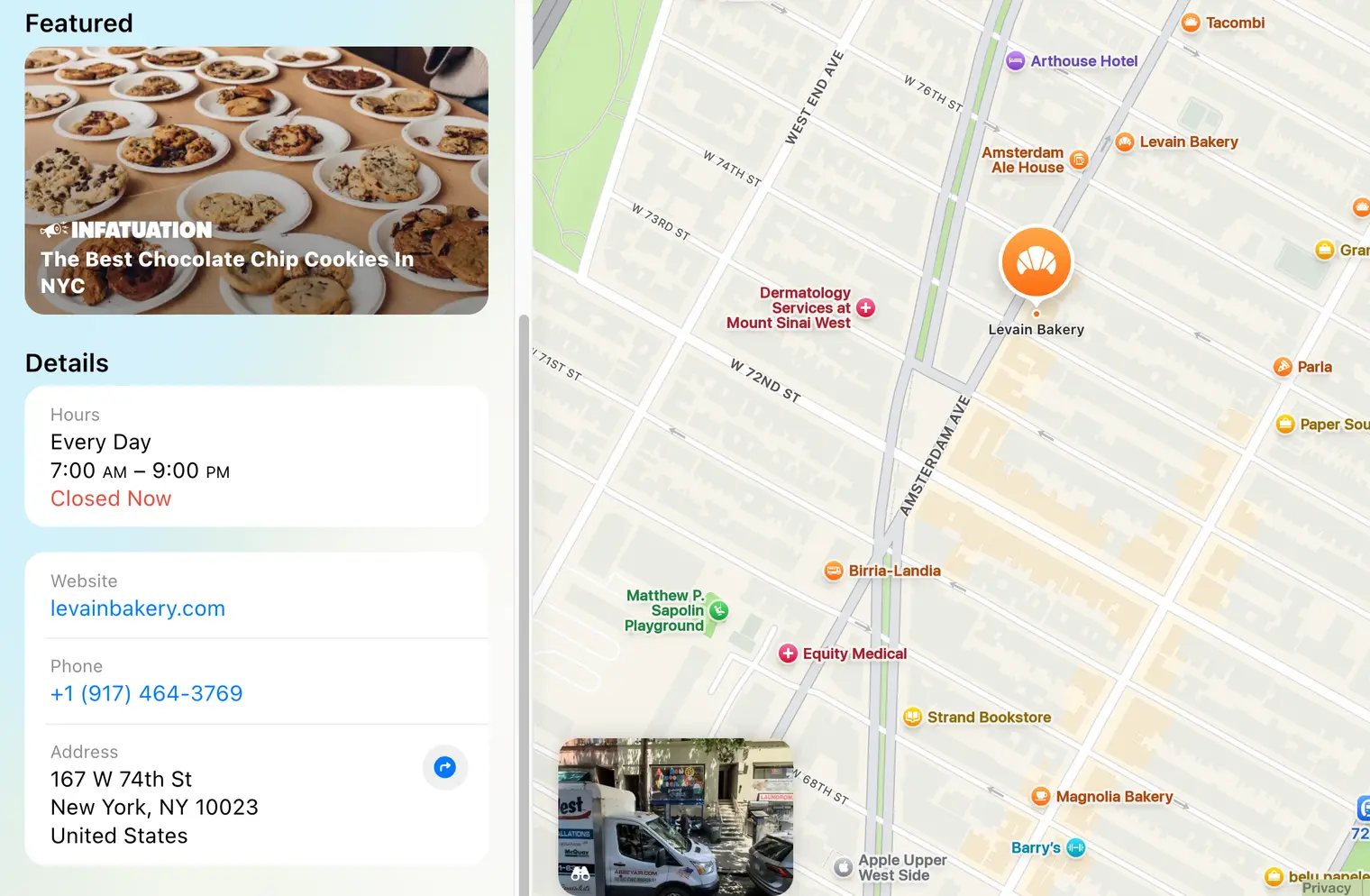
How to change business hours on Apple Maps
Open the branch’s hours information and choose the type of schedule you are updating.
| Schedule | When to use it | Example |
|---|---|---|
| Normal hours | Your usual recurring opening times | The shop opens later every Monday |
| Temporary or holiday hours | A date-specific exception | Closed for a public holiday |
| Service hours | A specific available service has different hours | A collection desk closes before the main shop |
Check the preview and save the change. Do not replace your normal weekly schedule to handle one temporary closure unless the workflow specifically requires it.
For example, if you close on one holiday Monday, record the exception rather than making every Monday closed. Check the normal schedule again after the holiday.
Tell staff which schedule was changed and keep the same information on the branch page. Customers should not have to choose between conflicting hours on your website and Maps.
How do you update the phone, website, or category?
Open the relevant information for the same branch and check each value before saving.
Test the phone number from another device if practical. Open the website link and confirm that it reaches useful information for that location.
For example, a customer opening the west branch’s card should not land on an outdated page for the east branch. A brand homepage may work, but a useful branch page can reduce the steps needed to find local details.
Choose categories that accurately describe the business. Keep contact changes separate from a wider rebrand so you can review the right evidence if Apple requests it.
What if the change does not appear?
Check the location and account first. You may have saved an edit for another branch, be looking at an older card, or still have a review request to complete.
Then compare three views: the details saved in Apple Business, any status or email notice, and the public card customers open.
Apple explains that customer reports can lead to changes to a location’s name, status, or hours. Review update notices and use the provided accept or contest process when appropriate.
A public card can also include information from other providers. Identify the affected field and any source shown before assuming your saved edit controls it.
If the record is still wrong, send support the location link, the field, your intended value, and the submission date. There is no single publication deadline that applies to every field and review; use the status and guidance for your case.

How do you report something you cannot edit?
Use Apple’s Maps reporting instructions for a place or route issue. On iPhone, the reporting options are available through your Maps profile and reports area or the relevant place controls.
Choose the issue that matches the problem and provide factual information. A report does not give you management of somebody else’s business card.
For example, a delivery customer can report a wrong location. A business owner who needs continuing control should also resolve account access.
What else should you check after moving premises?
An address correction is only part of a move. Check the business phone, hours, website, photos, and any instructions that still describe the old journey.
Compare old and new place results and ask support for the appropriate handling if the old location remains confusing. Do not mark a place permanently closed unless that accurately describes the location being changed.
Update your website and other important business listings separately. Apple, Google, and Bing do not share one universal editing process.
What should you do first?
Choose the most important incorrect field and record the intended correction. Open the correct branch, make the change, and note its status.
Check the public result before closing the task. For wider maintenance, return to the Apple Business Connect overview.