
How to Claim Your Apple Maps Business Listing
To claim an Apple Maps business listing, find the correct existing place and add it to your organization through Apple Business. If another organization manages it, follow the transfer route shown for that location.
Apple Business is the current home of Apple Business Connect. Use the current portal even if an older guide still uses the previous name.
What does claiming an Apple Maps listing mean?
Claiming means gaining authorized management of the location’s business information. It is different from finding the public card or suggesting a map correction.
For example, you might see your shop’s opening hours in Maps without having access to change them in Apple Business. The next task is to establish management of that place, rather than build another card with the same name.
Keep three things separate: the public place, your organization account, and the permission to manage that location.
1. Find the correct existing place
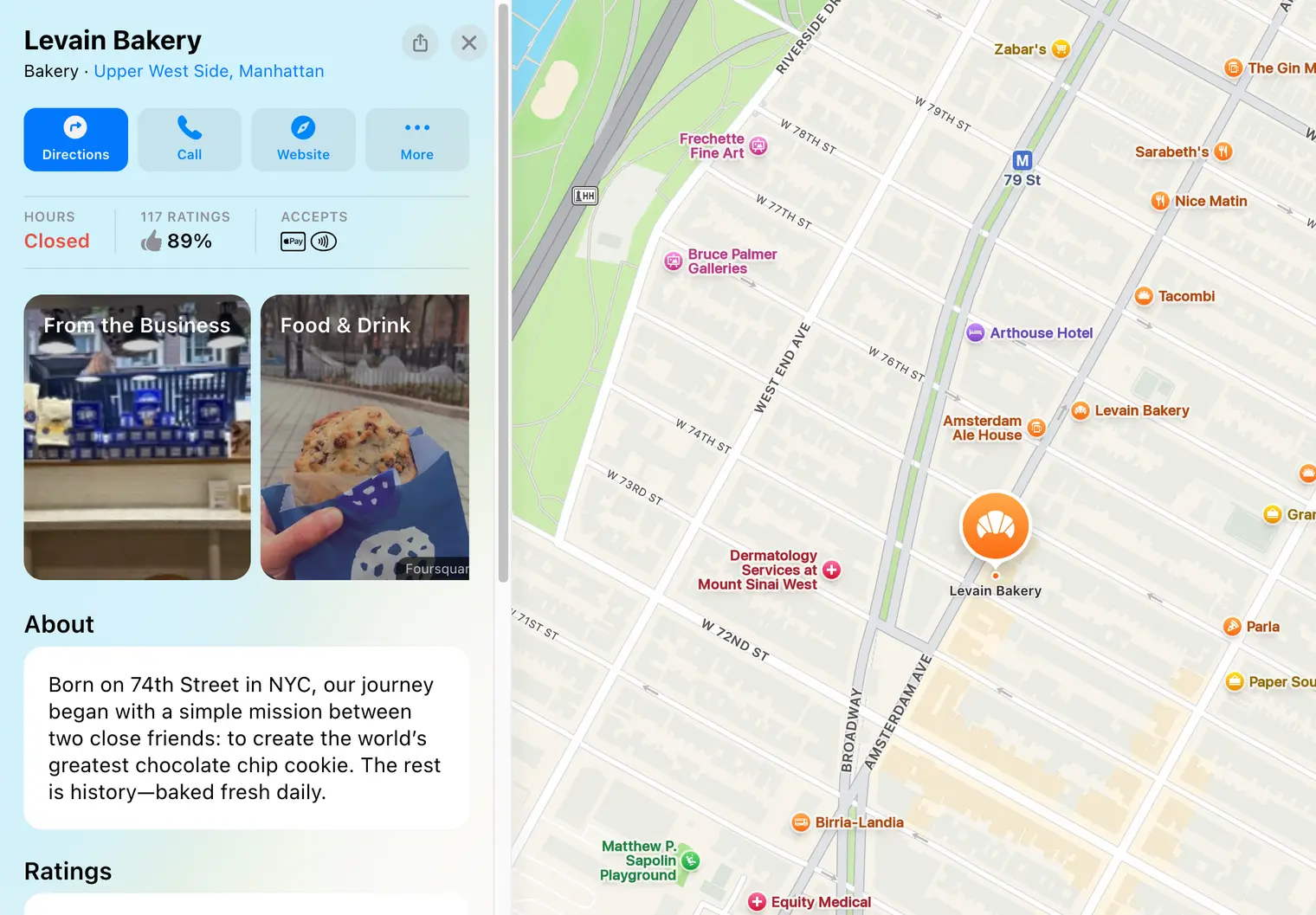
Search the business name and town on an iPhone or in the available web Maps experience. Check the address, building, and branch details.
Record the public place link and take a screenshot of any important error. This helps you distinguish it from an old or duplicate location while you work through access.
For example, a shop with two branches on similarly named streets should verify the address before starting a claim. Reviews or photos alone may not identify the intended branch.
2. Check whether your business already has access
Ask the person who originally set up the listing whether it sits under an existing business organization. Check legitimate business accounts before opening a new one.
A former employee’s personal login, an agency’s account, and a company-managed organization can create different recovery tasks. Do not share passwords to solve them. Ask for appropriate access through the platform or use support.
Use Apple Business sign-in and confirm that you are viewing the right organization or brand.
3. Add the existing location to your organization
Apple documents an existing-location route in Brands → Locations. Start Add Location → Add single location, search for the place, and select the correct result.
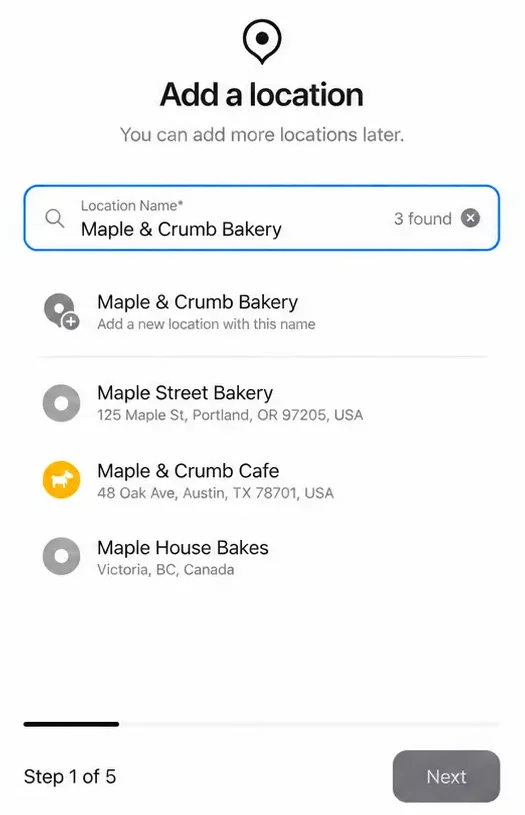
Review the information and follow the verification options. Phone verification may be offered for an existing place; use the recorded number or contact support if it is unfamiliar.
The goal is management of the correct existing location. Selecting a new-location option just because the claim takes longer can leave customers with competing cards.
What if someone else already manages the location?
Apple’s workflow can show that the location is already managed. Follow the instructions to add the location to your organization and request a transfer when available.
Under the location’s status, Request Transfer lets you explain the request and provide supporting information. Follow the review notices rather than assuming ownership changes immediately.
For example, if your agency previously managed the shop, establish whether they can help through authorized access. If the relationship has ended, gather the evidence Apple requests and use the transfer or support process.
Keep a copy of the request details and monitor the business email. Do not send confidential documents to an unofficial service claiming it can force a transfer.
What happens to the information already on the card?
After you gain access, review the information rather than assuming every visible detail is now editable or newly verified.
A place card can include information supplied through Apple’s ecosystem and partners, as described in Apple’s location-attribute guidance. Your management interface and the public card may not be identical views of the same fields.
For example, updating your phone number is a different task from changing a third-party item shown elsewhere on the card. Identify the specific field or section that is wrong before reporting the issue.
How should you handle duplicate place cards?
First establish whether the records really describe the same physical business. Two nearby branches are not duplicates simply because they share a brand.
Record both place links, addresses, and any differences. Use Apple’s reporting or business support route to explain the duplication. Do not promise yourself that deleting a record from your account will merge the public cards.
Apple distinguishes removing account management from marking a location permanently closed. Choose a status only when it accurately describes the real place.
For example, removing an agency’s access does not mean the shop has closed. Keep ownership changes separate from physical business status.
What should you fix first after gaining access?
Check the details a customer needs immediately:
- The correct business name and location.
- Current normal and temporary hours.
- A working business phone number.
- The website destination for this branch.
- Photos or arrival information that help identify the premises.
Use the Apple Maps update guide for the maintenance process. Keep a record of important edits and check the public result after they have been processed.
If there is genuinely no suitable existing place, use how to add your business to Apple Maps.
What should you do first?
Find the public card and confirm the branch. Then identify the organization or account that should manage it.
Choose the claim, transfer, or support route that matches that situation. For an equivalent Google access problem, the Google setup guide covers that platform’s separate process.