
How to add your business to Google
To add your business to Google, sign in to a Google account, go to google.com/business, type your business name, and work through the prompts: category, address or service area, phone, hours, then verification. The adding part takes about ten minutes. Verification is a separate process that can take days.
That is the short version. The rest of this guide covers the parts that go wrong: a listing that already exists, a home address you should not publish, and the gap between added and live.
What you need before you add your business to Google
Gather these first. Stopping halfway to find a detail is how people end up with two half-finished listings.
- A Google account. Use one the business owns. Profiles get stranded when the employee who set them up leaves.
- Your exact business name as it appears on your signage. Not “Baker Street Dental - Best Dentist in London”. Keyword-stuffed names get edited or suspended.
- A street address, or the areas you serve. One or the other. More on which below.
- A phone number that rings at the business and that someone will answer during the next week.
- Opening hours.
- A primary category. Google has a fixed list. It is the most consequential field on the profile, so decide before you start.
- Your website URL, and proof you operate where you say you do - signage, a branded vehicle, a utility bill. Video verification will ask for it.
How to add your business to Google, step by step
This is the current flow. Google retired the old standalone dashboard, so once the profile exists you manage it directly from Google Search and Google Maps while signed in.
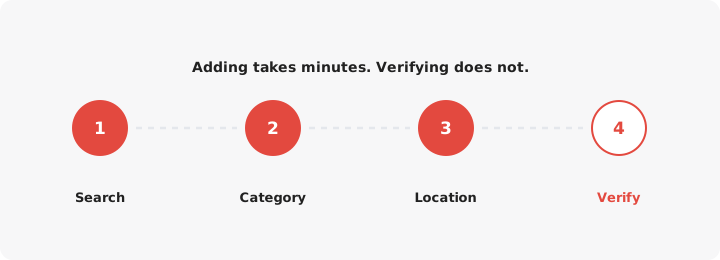
1. Search your business name before you create anything. On the first screen, type the name. Google drops a list of matching existing places underneath the field. If yours is in that list, do not keep typing - skip to the claiming section below. If nothing matches, choose Add your business to Google.
2. Pick your primary category. Start typing what you do and choose the closest match. Be specific: “Italian restaurant” beats “restaurant”, “emergency plumber” beats “contractor”. The primary category decides which searches you are even eligible for. You can add secondary categories later from Edit profile.
3. Answer the location question honestly. Google asks whether you want to add a location customers can visit. Say yes only if they come to you. Then enter the address and drag the map pin onto your actual entrance - automatic placement often lands mid-building or on the wrong side of the block, and that pin drives walking directions.
4. Add your service areas if you travel to customers. Enter cities, regions or postcodes. Google caps how many you can list, so pick places you genuinely serve.
5. Add your phone number and website. Both are optional here. Fill both in - a profile with neither looks abandoned.
6. Request verification. Google shows the methods available for your business and you choose from what you are offered. You cannot pick a method Google has not put in front of you.
When you finish, the profile exists in your account. It is not on Google Maps yet. Verification is what makes it public.
What to do if your business is already listed
This happens constantly, and most guides skip it. Google builds listings from sources other than you: data aggregators, Street View, and public submissions through Add a place in Maps. Your business may have been on the map for years without you knowing.
Three situations, three different fixes:
- Listed but unclaimed. You will see Claim this business or Own this business? on the listing. Click it and verify. The reviews and photos already there stay.
- Listed and verified by someone else. Maybe a former agency, a franchisee, or an ex-employee. Choose Request access. Google emails the current manager and gives them a short window to reply. Ignored requests usually transfer to you; a refusal sends you to a conflict form.
- Two listings, both yours. Request a merge through the support flow rather than deleting one. Deleting takes its reviews with it.
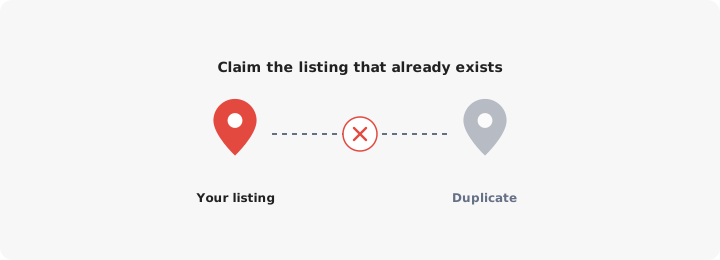
The important rule: while you are waiting on an access request, do not create a second listing. It feels like progress and it is the most expensive mistake here. Duplicates split your reviews, send Maps users to whichever profile Google prefers, and can get both suspended. Fix the listing that exists, even if it is slower.
Also Read: What is location-based marketing? and Local marketing and store locators.
Service-area businesses vs storefronts
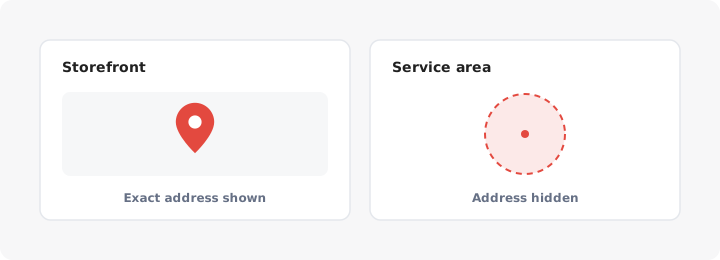
If customers do not come to your premises - you are a plumber, a mobile groomer, a consultant working from a spare bedroom - leave the address off the profile and set service areas instead.
Three reasons, and the first is the only one Google cares about:
- Google’s guidelines require a visitable, staffed location for any address you display. A home office that customers never enter does not qualify.
- A published home address puts your front door on Maps, complete with Street View, photos and strangers.
- Service-area businesses showing an address they cannot justify are a standard suspension trigger. The listing disappears and you argue your way back.
Already added your address? Go to Edit profile, then Location, clear the address field and keep the service areas. Google still uses the hidden address to work out which searches you are near; it just stops showing it.
The trade-off is real: service-area listings get no map pin and tend to do worse on tight “near me” searches, which matters most for the three results in the map pack. That makes your own website’s location pages more important, not less.
Adding more than one location
Add the second location exactly as you added the first, from the same Google account, and both sit under one login. Each location needs its own name, address, phone number and its own verification - there is no shortcut where verifying one verifies the rest.
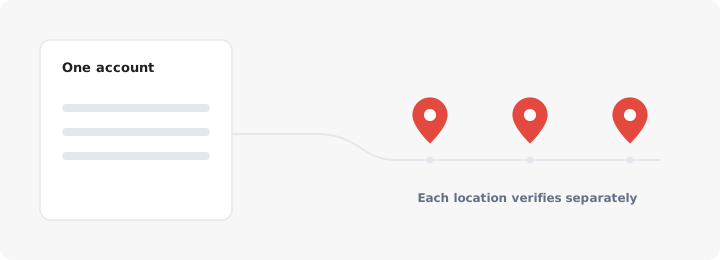
Past a handful of branches, use Business Profile Manager: group locations, and upload them in bulk with a spreadsheet import instead of typing each one. Businesses with ten or more locations can also request bulk verification rather than verifying one at a time.
Worth noting what Google does not fix. Multiple pins help someone already searching the map. The customer who clicks through to your website lands on a homepage with no idea which branch is closest. A searchable store locator on your own site closes that gap - which is what LocateStore does, from a Google Sheet of your locations.
What happens next: verification
Depending on your category and country, Google may offer a postcard by mail, a phone call or text, an email, a recorded video, a live video call with a support agent, or instant verification if your website domain is already in Search Console.
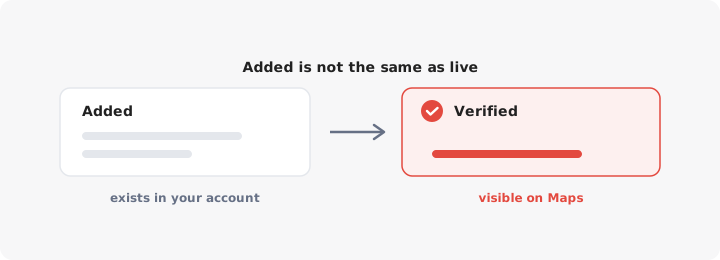
Keep one thing straight, because it is where people lose weeks: adding your business and verifying it are two separate steps with two separate ways to fail. An added-but-unverified profile is invisible in search and Maps. Verification can fail for reasons unrelated to whether your business is real - signage not visible in the video, a suite number formatted differently from the mail record, a postcard left in a mailroom. A rejection is not final; you can re-submit or appeal. Our guide to verifying your business on Google covers every method and what to do when one is rejected.
Filling the profile out properly so it actually performs
A verified but empty profile ranks badly and converts worse. Open Edit profile and finish the job.
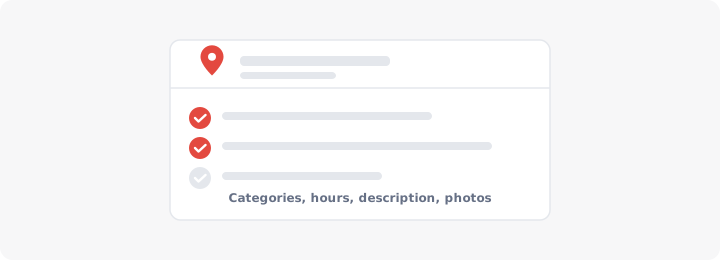
- Categories. Confirm the primary one and add every secondary category that genuinely applies.
- Hours. Set regular hours, then set special hours for public holidays. “Open” when you are closed produces one-star reviews.
- Description. You get 750 characters. It will not move your rankings, but it is read by people deciding between you and the next pin on the map, so say what you do, where, and why you. Stuck on the wording? Our free Google Business Profile description generator drafts one from a few details about your business.
- Photos. Add an exterior shot from the direction customers approach from, plus interiors and products. The exterior shot is how people know they have arrived.
- Services, products and attributes. Fill in what Google offers for your category - wheelchair access, outdoor seating, appointment booking. These feed filtered searches.
- Website link. With more than one location, point each profile at that branch’s page, not the homepage.
- Reviews. Reply to all of them. Make asking easy: a Google Maps QR code on receipts, packaging or the window takes people straight to your listing.
Once the profile is complete, the work shifts to ranking it and collecting reviews. Both are covered in the Google Maps SEO guide.
Do the setup once, properly, and the profile mostly looks after itself. Get your business on Google, verify it, keep the hours and photos honest - and make sure the site customers click through to can tell them which door to walk through.
