
Google reviews
To leave a Google review for a business: search for the business by name on Google, scroll the business panel to Reviews, click Write a review, pick a star rating, type a sentence or two, and hit Post. You need to be signed in to a Google account. It takes under a minute.
That is the whole job. Below: the same steps on each device, what to do without a Google account, and - if you are the business - how to hand customers a link that skips all of this.
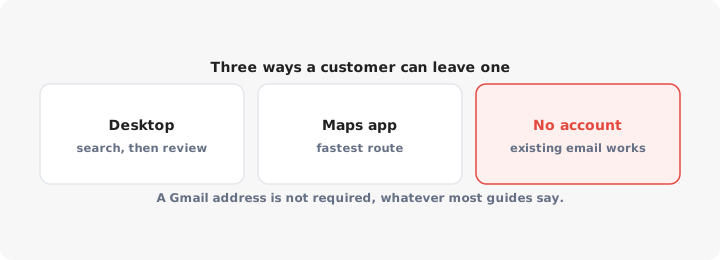
How to leave a Google review on desktop
- Go to google.com and search the business name, plus the town if the name is common.
- The business panel appears on the right of the results, or in the middle of the page on a narrow window. If you searched a chain, click the specific branch first.
- Scroll the panel to the reviews section and click Write a review. A pop-up opens.
- Click the stars - one to five, left to right.
- Write something. Fifty words beats five: mention what you bought, who served you, and whether you would go back. Google shows longer reviews more prominence in the list, and they are what other customers actually read.
- Add photos if you have them. Click Post.
If you are not signed in, Google asks you to sign in before the pop-up opens. Your review goes live within a few minutes, sometimes instantly.
How to leave a Google review in the Google Maps app
- Open Google Maps and search the business.
- Tap the result to open its page.
- Swipe the tabs across to Reviews, or scroll down to the “Rate and review” row of stars.
- Tap the star you want. The review box opens with the rating already set.
- Type your review, attach photos, tap Post.
The app is the faster route, and it is where most reviews come from. If you have location history on, Maps also prompts you to review places you recently visited, under the Contributions tab in your profile - the quickest way to review several places at once.
How to leave a Google review without a Google account
You cannot post a Google review without a Google account. There is no guest option and no anonymous option - your account name and profile photo show on the review.
But here is the part most articles get wrong: you do not need a Gmail address. When you create a Google account, choose Use my existing email instead on the signup screen. You can register with your work address, your Outlook address, anything. You get an account that can post reviews without a new inbox to manage.
Two more things to know before you post:
- Your name is public. You can change the name on your Google account before reviewing - but a profile with no history and an obviously fake name is what Google’s spam filters remove.
- You can edit or delete your own review any time, from Contributions in your Maps profile. If a business fixes the problem, update the review rather than leaving the complaint standing.
Why the review link is so hard to find
Because Google never built one. There is no google.com/review/businessname address. Every review starts from a search result or a map pin, which means the customer has to find the right listing first - and that is where it falls apart:
- Chains and multi-branch businesses show several near-identical pins. Customers routinely review the wrong branch.
- A business with a duplicate listing has two profiles. Reviews land on whichever one the customer opened.
- On mobile, a search result often tries to open the Maps app, which asks to be installed or signed in, and people give up there.
So if you are asking for reviews and only saying “leave us a Google review”, you are losing most of them to friction. Fix that with a direct link.
For businesses: how to get a direct review link to share
Two ways, and the second one is more reliable.
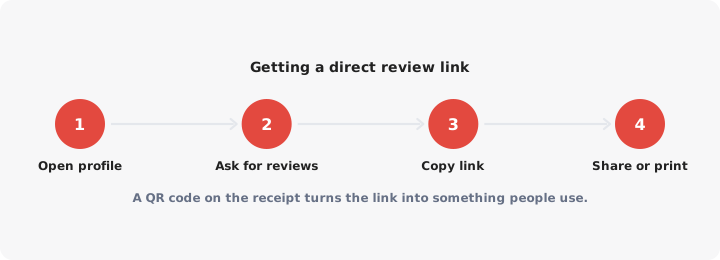
From your Business Profile. Search your own business name while signed in to the Google account that manages it, or open the profile in the Google Maps app. Look for Ask for reviews or Get more reviews. Google generates a short link, something like g.page/r/.../review, which opens the review box directly. Copy it.
From the Place ID. Open Google’s Place ID Finder, search your business, and copy the Place ID. Drop it into this URL:
https://search.google.com/local/writereview?placeid=YOUR_PLACE_ID
That link opens the star-rating box for exactly that listing, nothing else. It is the one to use if you have multiple locations, because you can build a separate link per branch and know each one points at the right pin.
Then put the link where customers already are. The best placement is a QR code - on the receipt, the counter, the window, the packaging. Someone standing in your shop with their phone out will review you; someone who gets an email three days later usually will not. Our free Google Maps QR code generator turns your review link into a printable code in seconds.
If you are a customer reading this: the business probably has one of these links. Ask for it, or just use the steps above.
Asking for reviews without breaking Google’s guidelines
Two rules do most of the work, and plenty of articles get the second one backwards.
No incentives. Google prohibits offering or accepting money, discounts, products, free services or prize entries in exchange for a review. Even “leave any honest review and get 10% off” breaks it, because you are still paying for reviews. So do staff bonuses tied to review counts.
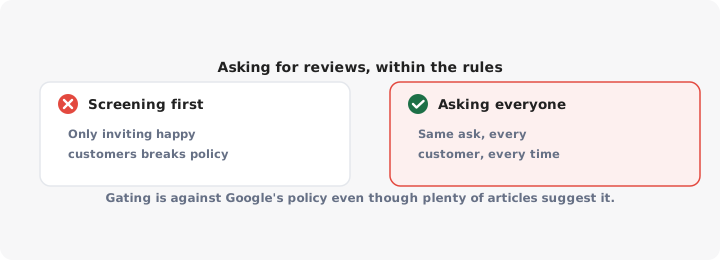
No gating. Review gating means asking customers how they feel first, then only sending the review link to the happy ones. It is a standard recommendation in a lot of marketing advice, and it violates Google’s policy: you may not selectively solicit positive reviews or discourage negative ones. If you survey customers, the review link goes to everyone who gets the survey, or to nobody.
What is allowed, and works:
- Ask every customer, in person, at the point of service.
- Ask once by email or SMS after the job, with the direct link in the message.
- Put the QR code somewhere permanent and let it collect reviews passively.
- Train staff to mention it. “If today went well, a review really helps us” is fine. “Give us five stars” is not.
One thing to avoid even though it is not technically banned: harvesting a batch of reviews in a single afternoon on the shop wifi. A sudden spike from one network looks like manufactured engagement, and Google’s filters quietly drop them. Steady beats sudden.
Responding to reviews
Reply to all of them, from the Reviews section of your profile. Replies are public and permanent, and they are read by future customers far more than by the reviewer.
- Good reviews: short, specific, not copy-pasted. Three identical “Thanks for your feedback!” replies in a row look automated.
- Bad reviews: answer calmly, acknowledge the specific problem, say what you changed, and move the argument offline with a phone number or email. Never argue the facts in public, even when you are right.
- Reviews you believe are fake or abusive: you cannot delete them, only report them. That process has its own rules, which we cover in how to remove bad Google reviews.
Reviews as a ranking factor
Google names three things behind local results: relevance, distance and prominence. Reviews feed prominence - both how many you have and what they say. Review volume and rating are part of how Google decides which pins fill the map pack, alongside everything in our guide to ranking on Google Maps.
Two practical consequences:
- Review text matters, not just stars. Reviews that mention the service and the place - “best gluten-free bakery in Leeds” - give Google wording that matches real searches. You cannot script this, but asking customers what they came in for tends to produce it.
- Recency matters. Forty reviews from three years ago read worse to customers than eight from last month. Reviews are a habit, not a campaign.
Reviews get people to the map pin. What happens next is on you: the customer taps through to your website and needs to know which branch is closest and whether it is open. If your site cannot answer that, a map on your own pages built from your location list - which is what LocateStore does - closes the gap. For everything else that moves local rankings, start with the Google Maps SEO guide.
