
How to Add a Bing Business Listing
To create a Bing business listing, start with the Google Business Profile import option if you already manage an accurate source profile. Otherwise, add or claim the business manually in Bing for Business.
In both cases, search for the existing Bing listing first. Importing or adding another record is not a way to bypass an access problem.
What is a Bing business listing?
It is the local business information customers can find through Bing Search and Bing Maps. It can help them check the business, contact it, or plan a visit.
For example, someone searching for a nearby hardware shop needs the correct branch, opening hours, and directions. The listing should describe that real location rather than a generic city you hope to reach.
The Bing Places overview explains the platform and the current dashboard address.
Before you import, check the source and destination
Open the Google profile you intend to use and confirm its details. Then search Bing for the same business name and full address.
Record whether a matching listing already exists and whether you can manage it. Check branches individually if the business has several locations.
For example, an old Google listing at a previous address should not be imported as though it were the current shop. Correct the source or choose the proper setup route before proceeding.
Use a business-controlled account and keep a record of the sign-in method. The account used to sign in to Bing and the Google account used for import are not necessarily the same account.
How to import from Google Business Profile
Microsoft’s Bing Places help confirms the Google connection and explains that sync can overwrite matching Bing information.
Use the import workflow shown in your account:
- Open Bing for Business and sign in.
- Choose the Google Business Profile import option.
- Connect the Google account authorized to manage the relevant business.
- Review the requested access and select the intended locations.
- Check any matches to existing Bing listings before completing the import.
- Review the resulting records and finish outstanding verification or review steps.
The layout can change, so follow the options in the current dashboard rather than looking for an old screenshot’s exact button position.
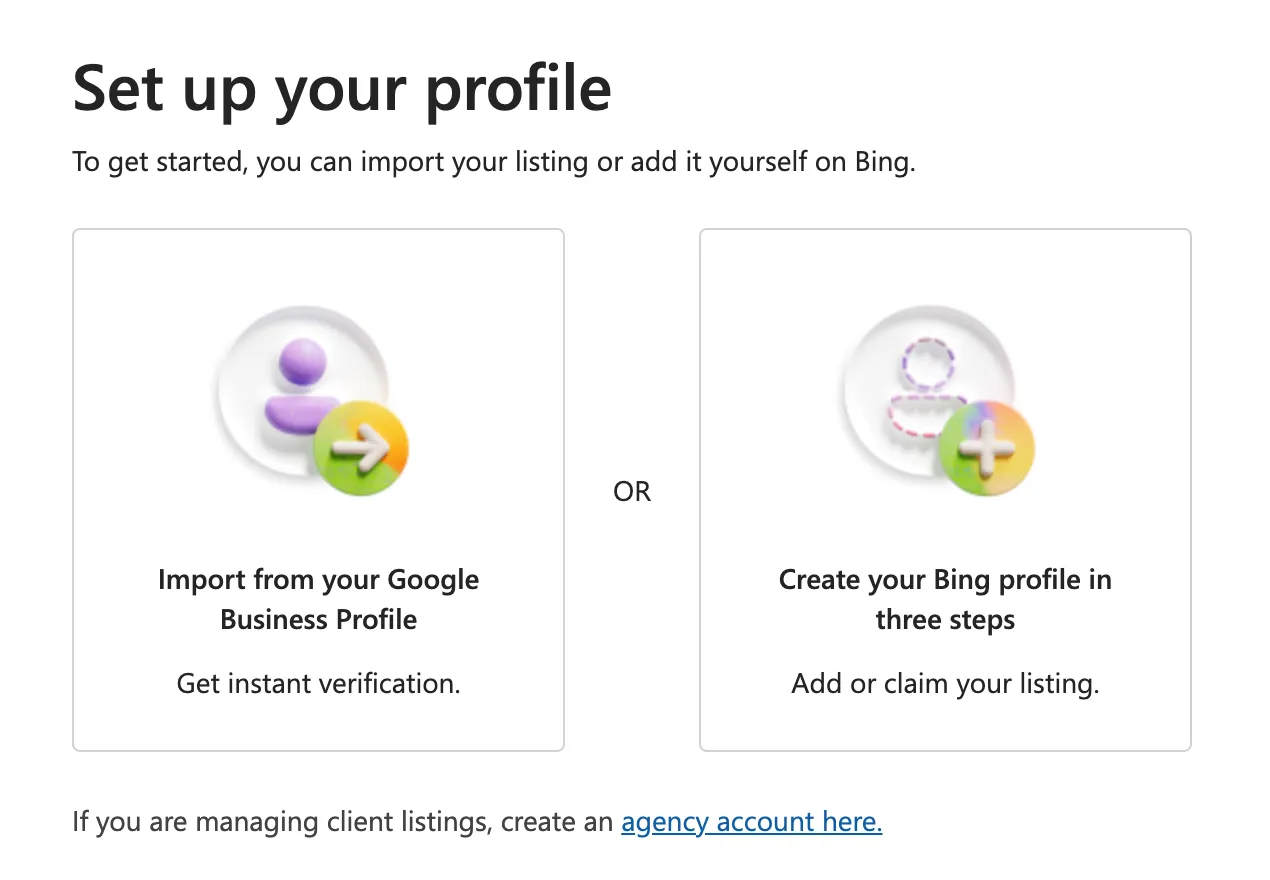
What should you check after importing?
Open each resulting listing and compare the practical details: name, address, category, phone, hours, and website destination. Review photos and other content separately.
Microsoft describes improvements to importing business names, hours, and contact details in its current product announcement. That is not a promise that every Google feature or review will be copied.
For example, if one branch closes earlier on Saturday, check that the exception is represented correctly. Do not infer accuracy from the fact that another branch imported successfully.
How to add a business manually
Use this route when you do not have a suitable Google source profile or choose not to connect it.
Search or select the business through the dashboard’s add-or-claim workflow. If the correct listing exists, use it. If no correct listing exists, provide the real business information requested.
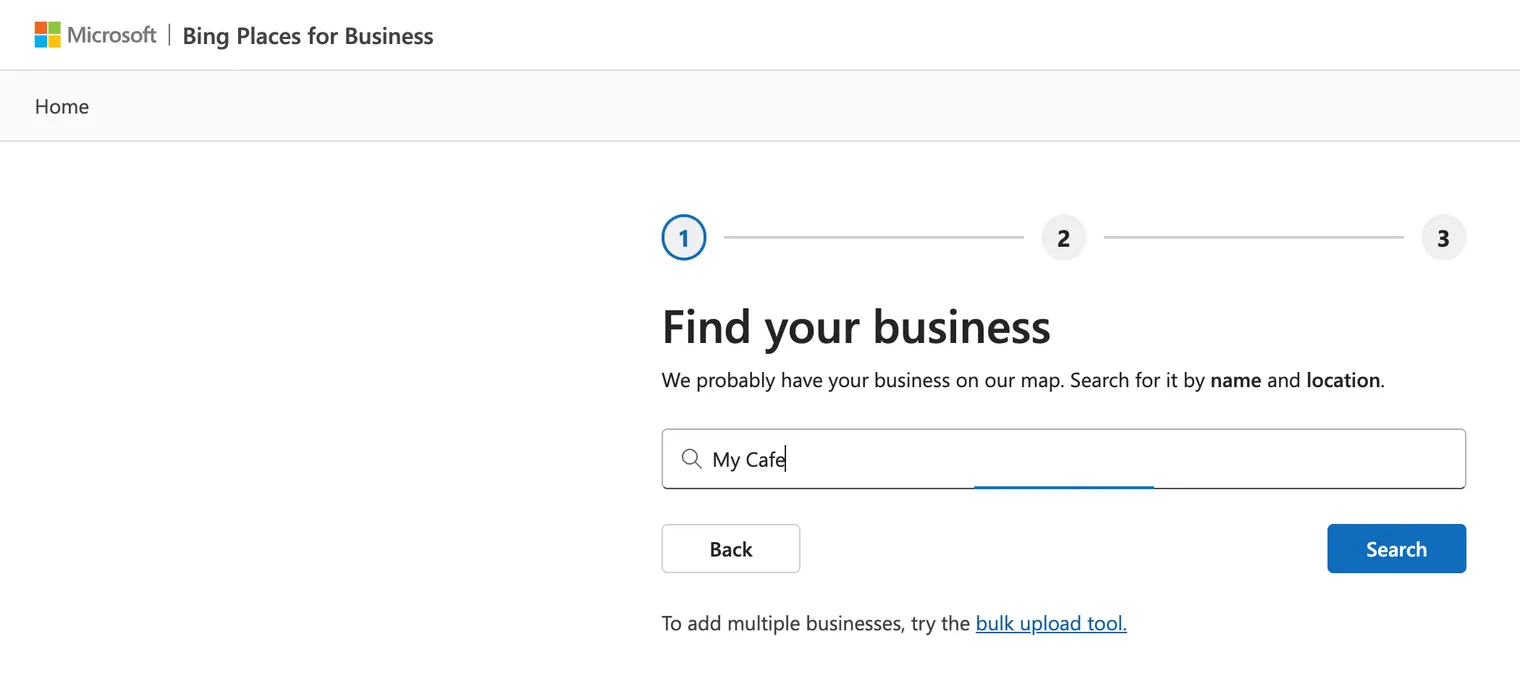
Prepare your business name, address or service setup, contact details, category, website, and hours. Review the location on the map and the customer-facing details before submitting.
For example, use the shop’s actual unit or suite information where needed. A customer should be able to identify the premises, not just the general neighbourhood.
If your account is blocked from editing an existing record, use the management and recovery guide instead of making another listing.
What happens during verification?
Verification checks that you are authorized to represent the business. Use a method actually offered for the listing, and make sure the relevant business contact can receive it.
Read the resulting status and any request for more information. Keep access to the account email and do not assume every location qualifies for the same method.
For example, the person who operates a branch phone may need to help receive a verification message. An import alone should not be treated as confirmation that the public listing is ready.

How long before the listing appears?
Microsoft’s current FAQ says publication usually takes 7–12 calendar days after successful verification, with extra time possible for details to appear across results.
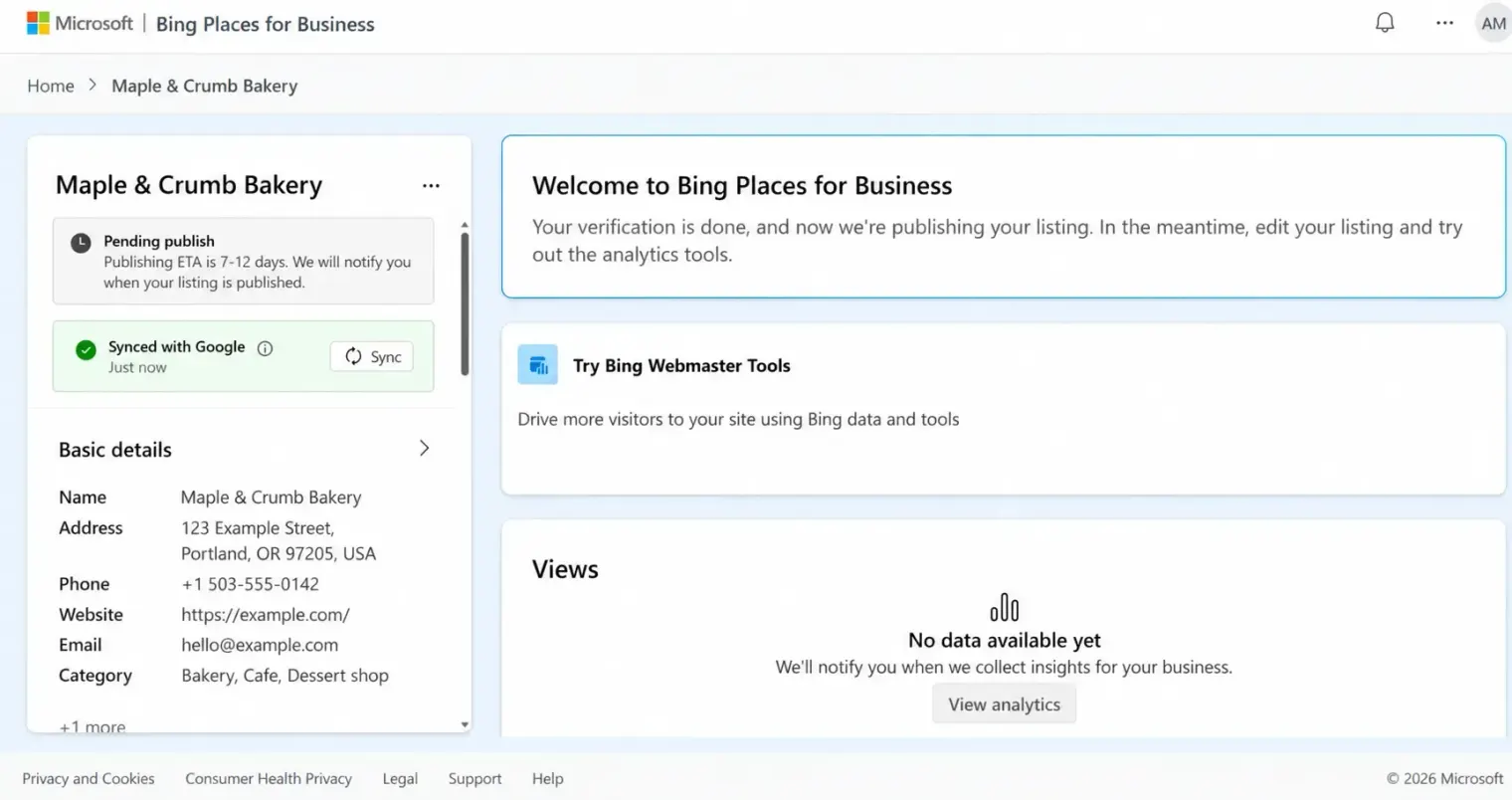
That is guidance, not a guaranteed launch date. Check the listing status and contact support when the stated processing window has passed without resolution.
Avoid making repeated nonessential edits while a record is processing. Keep a note of the submission and any support request so you can explain what happened.
What if you operate several locations?
Review each location before selecting multiple Google profiles to import. Use distinct branch records and the correct website pages.
The current Bing experience supports bulk management. Check the options offered to your account; if a spreadsheet upload is available, use its current template and review the resulting records.
For example, do not fill every branch with the head office’s hours just to complete the file. Ask local staff to confirm the facts before submitting a wider update.
The multi-location SEO guide provides a shared branch checklist, but Bing verification and import remain separate tasks.
What should you do after publication?
Open the public listing and test the phone and website destination. Check the branch address, hours, and relevant services.
Review any import or sync arrangement before editing source and destination differently. Follow managing your Bing business profile for an ongoing routine.
If you have not set up the Google profile you want to import, start with adding your business to Google. For the Apple Maps equivalent, see the Apple business hub.