
How to Manage Your Bing Business Profile
To manage your Bing business profile, sign in to Bing for Business with the account associated with the listing. Open the correct branch, review its details and status, and check any Google import connection before editing.
If you have no listing to manage yet, use how to add a Bing business listing.
What is the Bing Places dashboard?
The dashboard is the account area used to manage your local business records. It is separate from the public listing a customer opens in search.
Use the current Bing for Business sign-in page. An older bookmark may still refer to Bing Places or bingplaces.com.
For example, being able to see your shop on Bing Maps does not establish that the account you just signed in with has editing permission.
1. Confirm the correct account and branch
Check the sign-in provider and email used when the listing was created or claimed. A different Microsoft, Google, or work account may show a different set of records.
Search the dashboard for the exact branch and compare the address before opening its editor. Keep an internal record of the public listing, account access, and person responsible for updates.
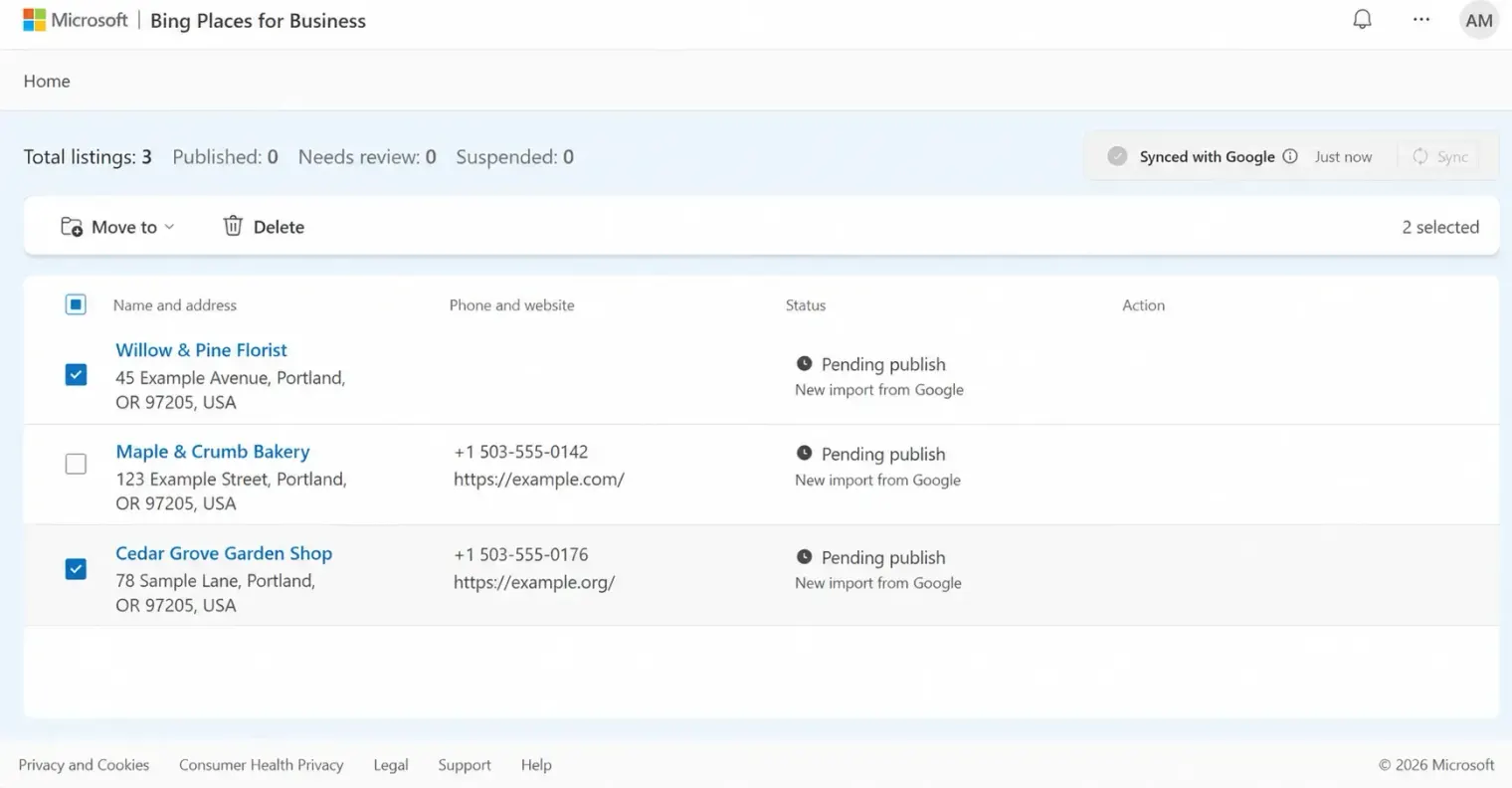
For example, a chain’s north and south branches may have similar names. Confirm the address rather than relying on the first matching result.
2. Check imports before changing details
If the listing was connected to Google, identify which profile supplies the information and how the import or sync is configured.
Microsoft explains that a sync can overwrite matching Bing listing data. Editing a field in Bing while leaving a conflicting value at the connected source may not resolve the problem.
For example, if Google still has last year’s phone number, correcting it only in Bing can leave the underlying conflict in place. Review the source and destination together.
Keep a short change record, especially when several people or an agency maintain the listings.

3. Edit the information customers use
Open the listing’s editing controls and review the available fields. Prioritise the real business name, category, contact information, hours, and website.
Check the map location and any supported service-area setup. Use settings appropriate to how customers actually receive the service.
Microsoft’s current FAQ explains that eligible service-area businesses can hide their public address while retaining an address internally for verification.
For example, a mobile repair business that does not receive visitors at its base should check that setup instead of presenting the base as a walk-in shop.
Test phone and website links after processing. For several branches, make sure each destination helps the customer find the selected branch’s information.
What if the business has moved?
Follow Bing’s own process rather than copying your Google workflow. Microsoft’s FAQ directs a business moving to new premises to create an accurate new-location listing and mark the old location closed.
Confirm you are handling a real move, not correcting a spelling mistake or a misplaced marker. If the situation is unclear, ask support before changing the old record’s business status.
For example, an address typo at the same premises is different from leaving one shop unit and opening elsewhere. Record the old and new details so support can distinguish them.
Also update your website and other map services separately. A Bing move does not complete the same task on Apple or Google.

How do you check verification and publication?
Open the status shown for the branch and follow any outstanding request. Saving changes, verifying management, and publishing the public listing are different stages.
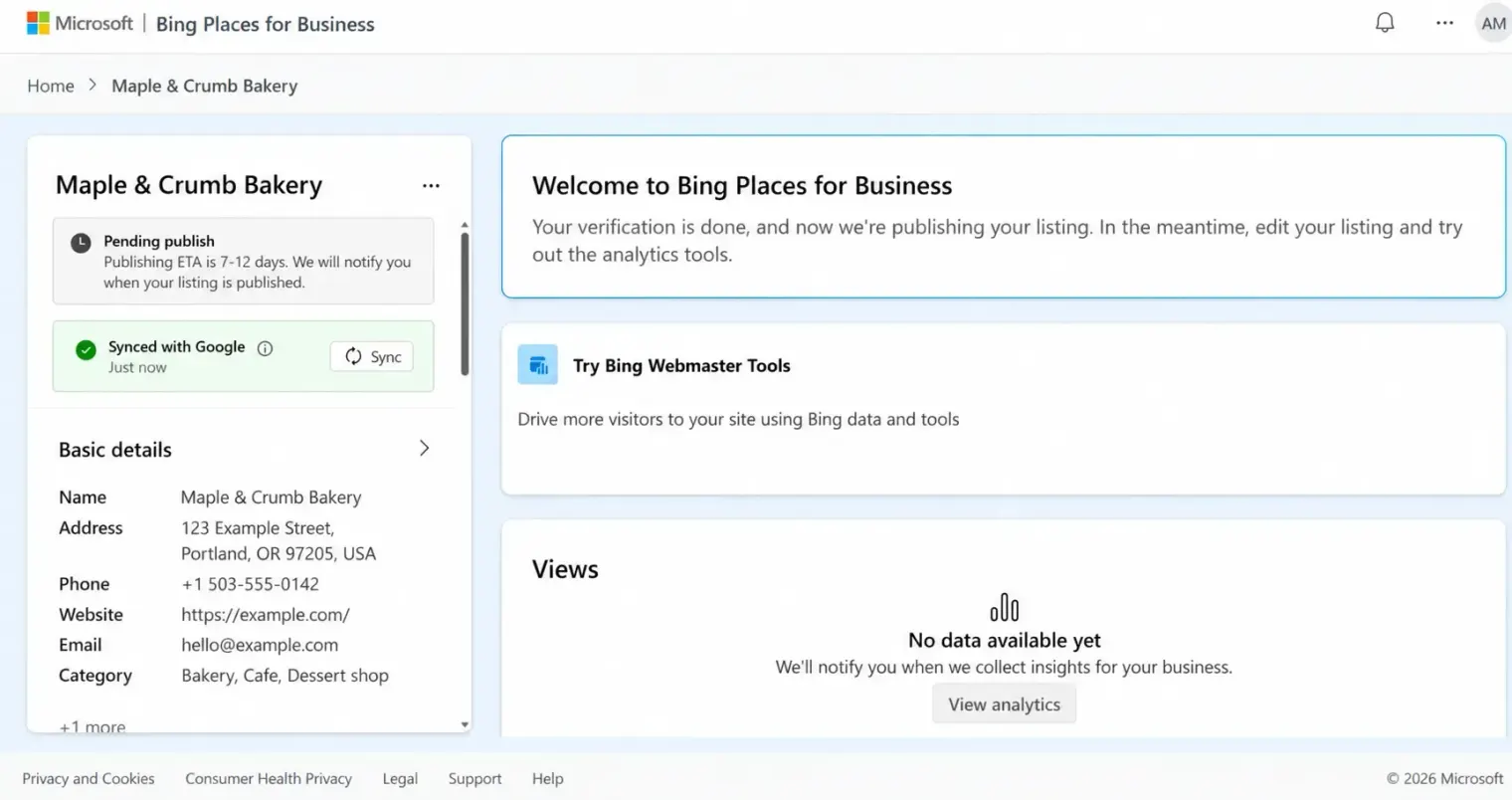
Use Microsoft’s FAQ for the processing window that applies to your case. Keep the submission date and avoid repeated nonessential edits while the record is being processed.
If the expected window has passed, contact the dashboard’s support channel with the listing identifier, field or status, and dates. Do not assume a new listing will solve a delayed review.
What if you cannot get into the account?
First distinguish an account sign-in problem from a listing-permission problem.
| Problem | First check |
|---|---|
| No account access | The sign-in provider and email used for the original account |
| Signed in, but no listing | Whether the correct account or organization is selected |
| Someone else manages it | Whether the current owner can grant appropriate access |
| Ownership or duplicate conflict | The published listing and the dashboard’s support route |
Use the sign-in provider’s legitimate recovery process when the account itself is inaccessible. If the account works but the business is managed elsewhere, ask the authorized manager to provide access or contact Bing support.
For example, a former agency managing a listing is not the same issue as forgetting the password to your own account. Gather the business records requested for the relevant recovery process rather than creating multiple accounts in the hope one will work.
How should you handle duplicate listings?
Compare the name, address, and branch before deciding two results are duplicates. Separate real locations should retain separate records.
For a record marked Duplicate, Microsoft’s FAQ says to work with the published listing instead; editing the duplicate is disabled. Ask the account owner for access or use support when needed.
Review imports too. Re-importing an existing business can create duplicate records. Record the affected public links and explain which real location each should represent.
How do you manage more than one branch?
Keep a shared branch list with a stable internal identifier, account owner, public listing link, address, contact details, hours, and website destination.
Use the bulk management options available in your dashboard, but inspect a sample of the resulting public listings after any larger change.
For example, a holiday-hours update should apply only to the branches following that schedule. Do not assume every branch closes on the same day.
Our multi-location SEO guide explains the wider coordination work. Locatestore helps customers find branches on your website; it is not a tool for synchronising Bing or other directory listings.
How often should you review the profile?
Correct important changes as they happen, especially a new phone number, move, closure, or revised hours.
For stable information, a twice-yearly calendar reminder is a practical starting routine. Add checks before unusual trading dates, after imports, and whenever customers report wrong details.
Review the public result as well as the dashboard. For example, test the actual website destination and contact options rather than only reading a saved form.
What should you do first?
Open the correct branch and compare its public details with your business records. Resolve one important error and note the change.
Then check who owns the account and whether another data source can overwrite the edit. The Bing Places overview links the setup and maintenance tasks together.